Jira Integration
Connect Jira to sync work items, epics, and project data between Clears AI and your Jira workspace.
Integration settings are only visible to users with the Admin role. Regular users cannot access or modify integration configuration.
Connecting via OAuth
- Navigate to Settings → Integrations → Jira
- Click Connect Jira
- A popup window opens to Jira's OAuth authorization screen
- Grant Clears AI access to your Jira workspace
- The popup closes and the connection status updates to active
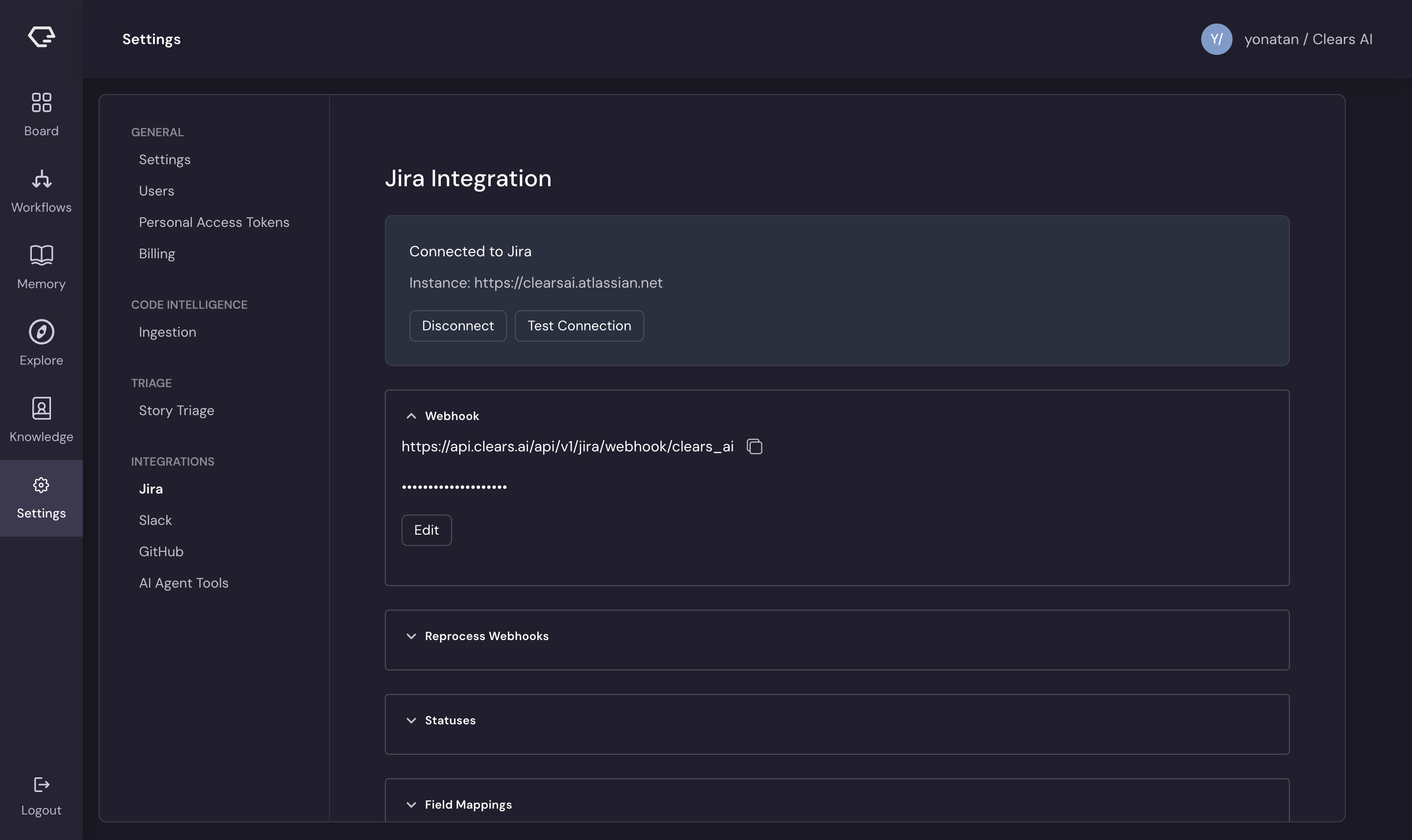
Once connected, you'll see your workspace name and a Last connected timestamp.
Testing the Connection
Click Test Connection to verify that Clears AI can communicate with your Jira instance. A success or error notification appears confirming the result.
Webhook Configuration
After connecting, a webhook section displays:
- Webhook URL - the endpoint Jira sends events to (with a copy button for convenience)
- Webhook Secret - used to verify incoming webhook payloads; click Edit to update
Configure this webhook in your Jira workspace to enable real-time event synchronization.
Syncing Data
Click Sync Epics to pull the latest epic and project data from Jira into Clears AI. This is useful after making changes in Jira that you want reflected immediately.
Project Status Audit
The Jira Project Statuses section helps ensure your Jira projects have the status configurations required by Clears AI's story lifecycle.
- Select one or more projects from the dropdown
- Click Audit to analyze the status configuration
- The audit identifies any missing statuses or transitions that the AI workflow requires
- Click Auto-fix to automatically create the missing statuses and transitions in Jira
This is important when first connecting a Jira project - the workflow expects specific status transitions (e.g., To Do → Enriched → In Progress → Validation → Done), and the audit ensures your Jira project supports them.
Field and Status Mappings
- Field Mappings - map Jira custom fields to Clears AI fields, ensuring data flows correctly between systems
- Status Mappings - map Jira status names to Clears AI's internal status values
Disconnecting
Click Disconnect to revoke the OAuth connection. This stops all synchronization between Clears AI and Jira.