Board
The Board is the central workspace for managing AI-driven stories. It provides a real-time view of all your stories as they move through the story lifecycle, with two display modes, powerful filtering, and deep integration with GitHub activity.
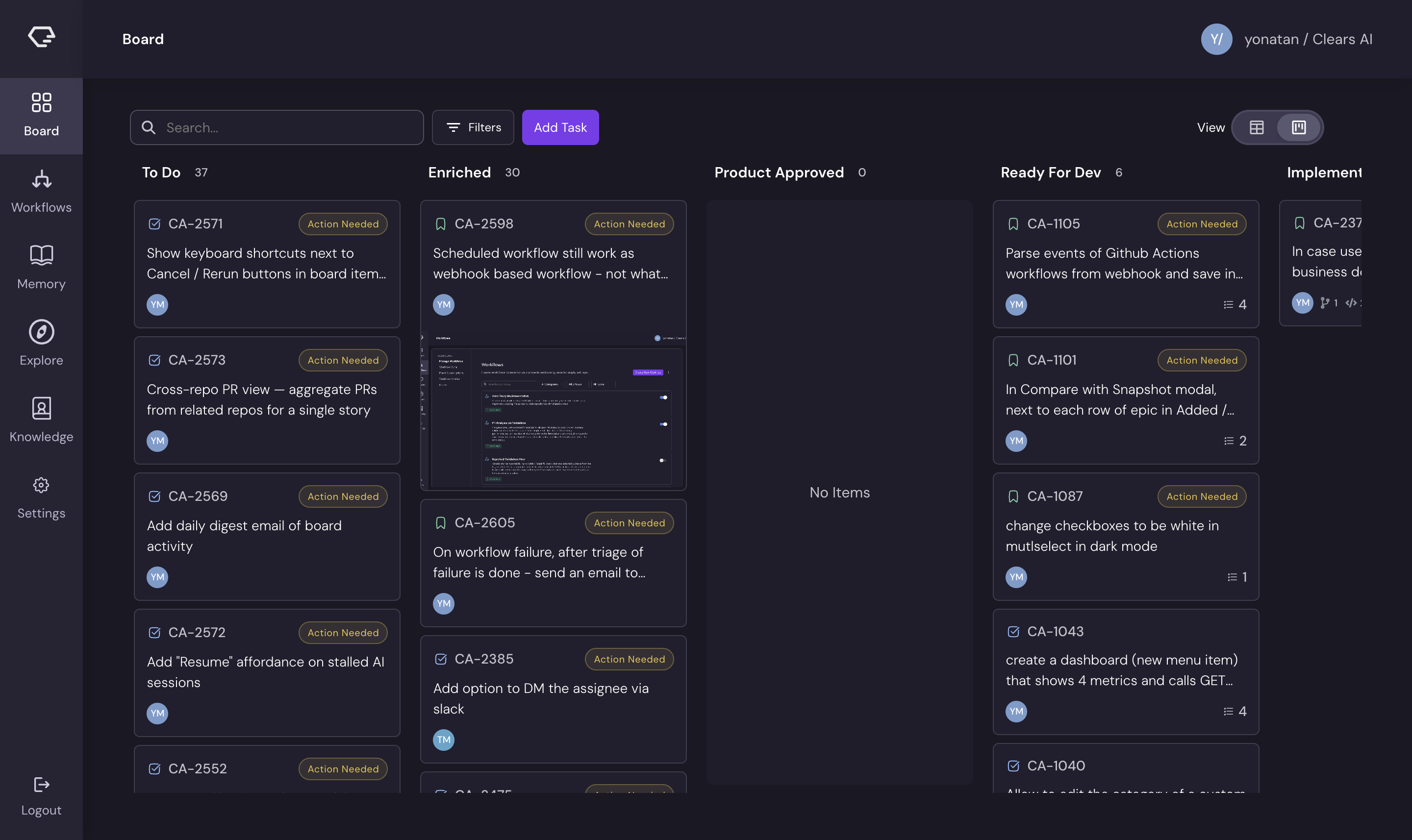
View Modes
Kanban View
The default view organizes stories into columns by status:
| Column | Statuses |
|---|---|
| To Do | To Do |
| Enriched | Enriched |
| Product Approved | Product Approved |
| Dev | Ready For Dev, In Progress |
| Validation | Validation |
| Done | Done |
Each column header shows the count of stories it contains. Stories appear as cards with summary, assignee avatar, and status indicators.
Table View
Switch to table view using the toggle in the toolbar. The table displays stories in a flat list with sortable columns:
- Key - the story identifier (e.g.,
CA-123) - Summary - the story title
- Description - truncated story description
- Status - current lifecycle status
- Reporter - who created the story
- Workflow - current workflow step
- Git activity - branch, commit, and PR indicators
- Subtasks - count of subtasks and their progress
Table view is useful for scanning a large number of stories at once or when you need to compare specific fields across stories.
Filtering and Grouping
The toolbar provides several ways to narrow down the stories displayed.
Filter Options
| Filter | Description |
|---|---|
| Project | Filter by project |
| Assignee | Filter by assigned team member |
| Reporter | Filter by story creator |
| Issue type | Filter by type (Story, Epic, Bug, Task, Subtask) |
| Epic | Filter by parent epic |
| Team | Filter by team assignment |
| Custom fields | Filter on any custom field values |
| Search | Full-text search across story summaries and descriptions |
Action Needed Filter
Toggle Action needed only to show only stories that require your attention, for example stories waiting for Q&A answers or PR reviews. This is useful for quickly finding where the AI is blocked on your input.
Group By
Use the Group By option to organize stories by a field such as assignee, reporter, or epic. In kanban view, this creates separate swim lanes for each group.
Filter Presets
Save frequently used filter combinations as presets for quick access. Create a preset by configuring your filters, then clicking Save Preset in the filter toolbar.
Creating Stories
Click the Add Task button in the toolbar to create a new story.
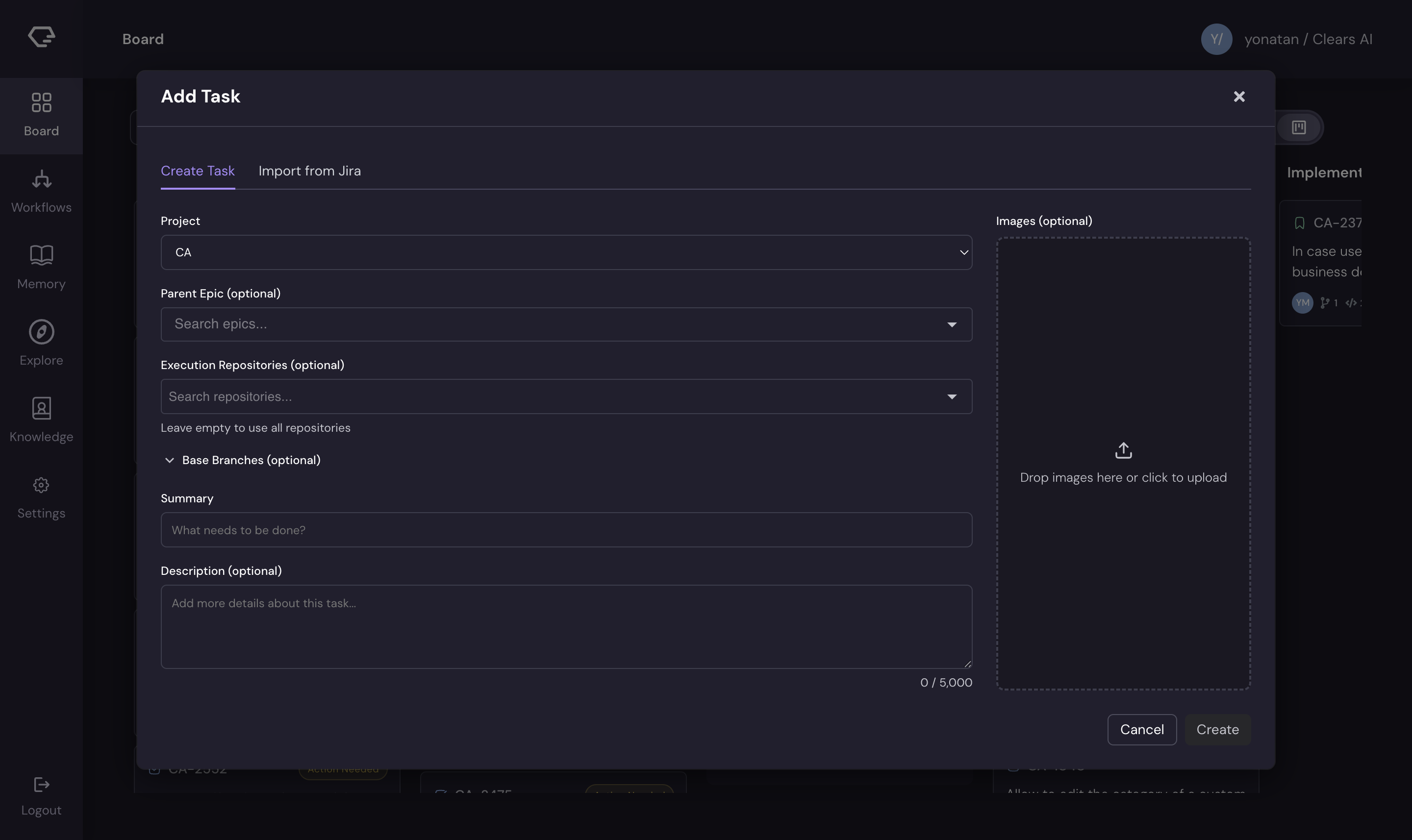
Fill in the following fields:
| Field | Required | Description |
|---|---|---|
| Summary | Yes | A clear title describing what you want built |
| Description | No | Additional context, requirements, or acceptance criteria |
| Project | Yes | The project this story belongs to |
| Parent Epic | No | Link to an existing epic for organization |
| Execution Repositories | Yes | Which repositories (or projects, for GitLab) the AI should work in |
| Images | No | Drag and drop screenshots, mockups, or diagrams |
Click Run Task to create the story and start AI execution immediately.
:::tip Writing effective stories The more context you provide, the better the AI performs. Include:
- What the feature should do (user-facing behavior)
- Where it fits in the existing codebase (if you know)
- Any constraints or edge cases to handle
- Screenshots or mockups for UI work :::
Story Card Details
Click on any story card to open the detail panel. The panel provides full visibility into the story's state and the AI agent's work.
Details Tab
The main tab shows the story's metadata and generated specification:
- Summary - editable story title
- Description - editable story description (supports Markdown)
- TL;DR - AI-generated brief summary of planned changes
- Definition of Done - acceptance criteria the implementation will satisfy
- Files to Change - list of files the AI plans to modify
- Status - current lifecycle status with manual override option
- Assignee and Reporter - team member assignments
- Parent Epic - linked epic (if any)
AI Session Tab
The AI Session tab provides a live terminal view of the agent's work:
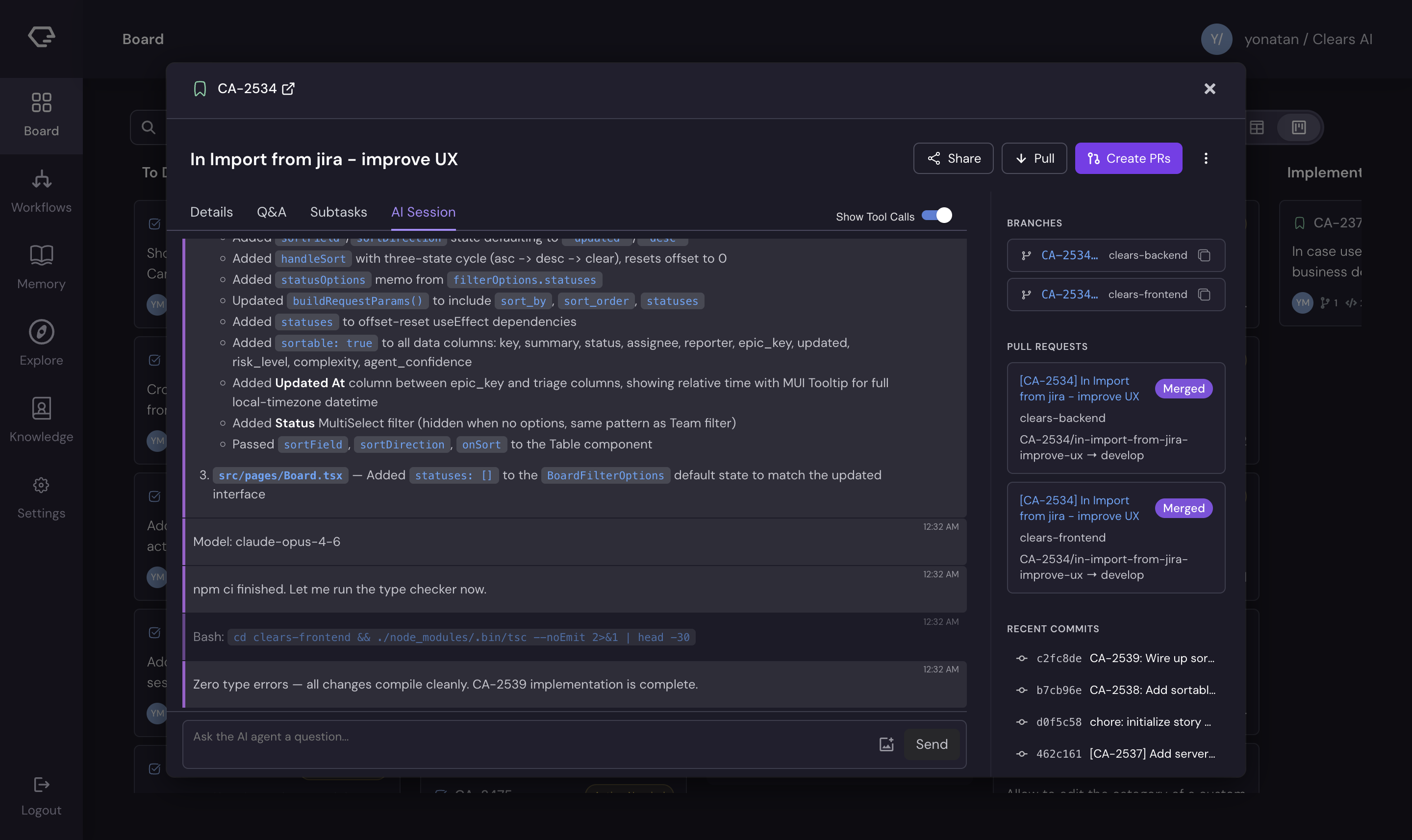
- Real-time event stream - watch the agent's actions as they happen (codebase exploration, file edits, command execution)
- Send prompts - type a message to guide the agent while it's working
- Attach images - drag and drop images to provide visual context to the agent
- Session history - review past agent sessions for the story
This is your primary interface for interacting with the AI agent during execution. You can redirect the agent, provide additional context, or ask it to reconsider an approach, all in real time.
Q&A Tab
During the analysis phase, the AI generates clarifying questions about your requirements.
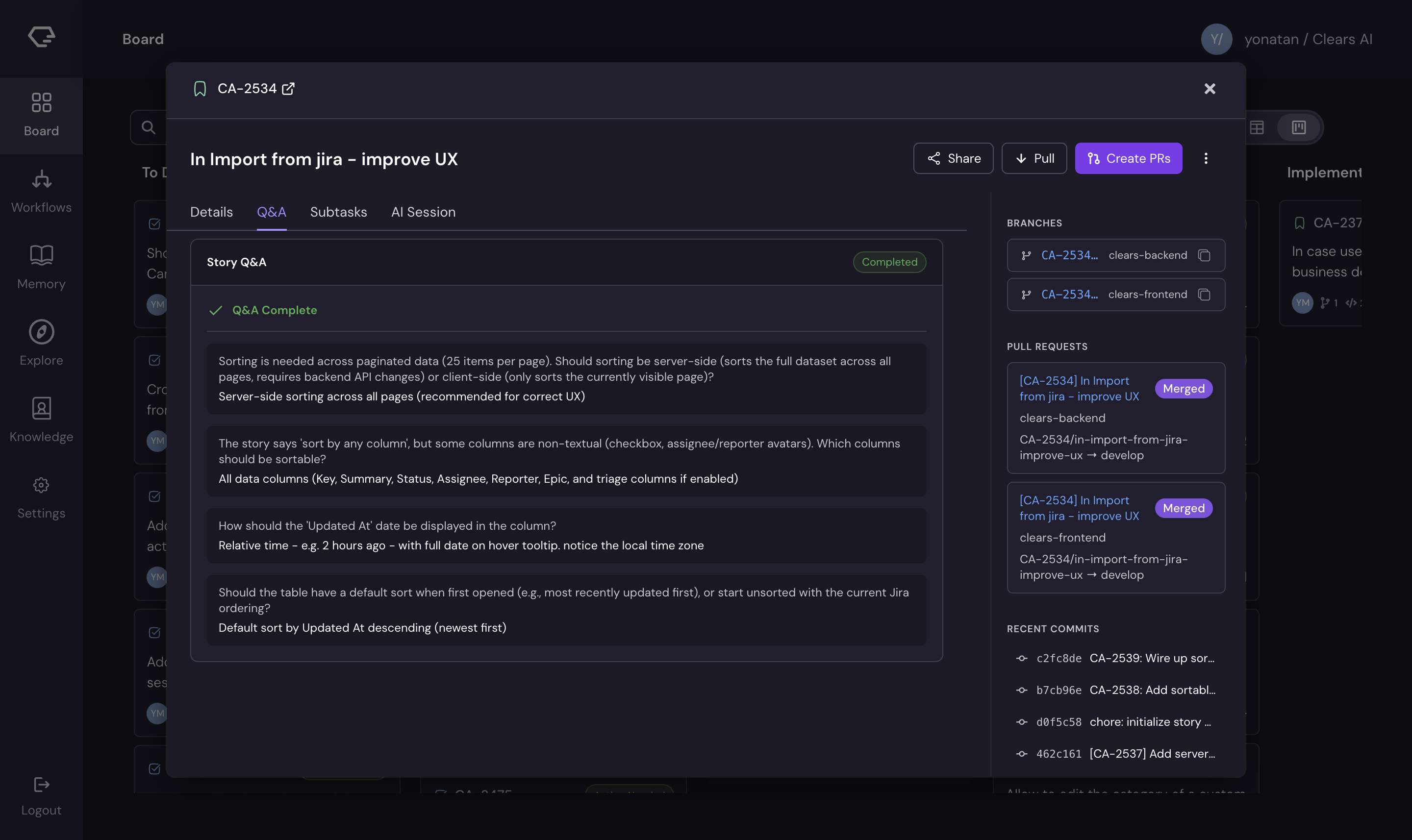
For each question:
- Select a suggested option - the AI provides pre-defined choices based on its analysis
- Type a custom answer - provide your own response in the text field
Your answers refine the specification and guide implementation. If Slack is connected, Q&A questions also arrive as direct messages.
Attachments Tab
Manage files attached to the story:
- Drag and drop files onto the attachment area, or click to browse
- Paste images directly from your clipboard
- Size limit - 10 MB per file
- Thumbnail grid - previews for image attachments
- Lightbox - click an image thumbnail to view it full-size
Attachments are available to the AI agent during execution. Use them to share mockups, screenshots of existing UI, architecture diagrams, or any other visual reference.
Git Tab
The Git tab shows all VCS activity related to the story:
- Branches created by the AI
- Commits pushed to each branch
- Pull requests (or merge requests for GitLab) opened, with status and review state
The Git tab works with all supported VCS providers — GitHub, GitLab, and Bitbucket. GitLab uses the term "merge requests" instead of "pull requests."
VCS Activity Indicators
Story cards display real-time VCS activity directly on the card surface, so you can see progress at a glance without opening the detail panel.
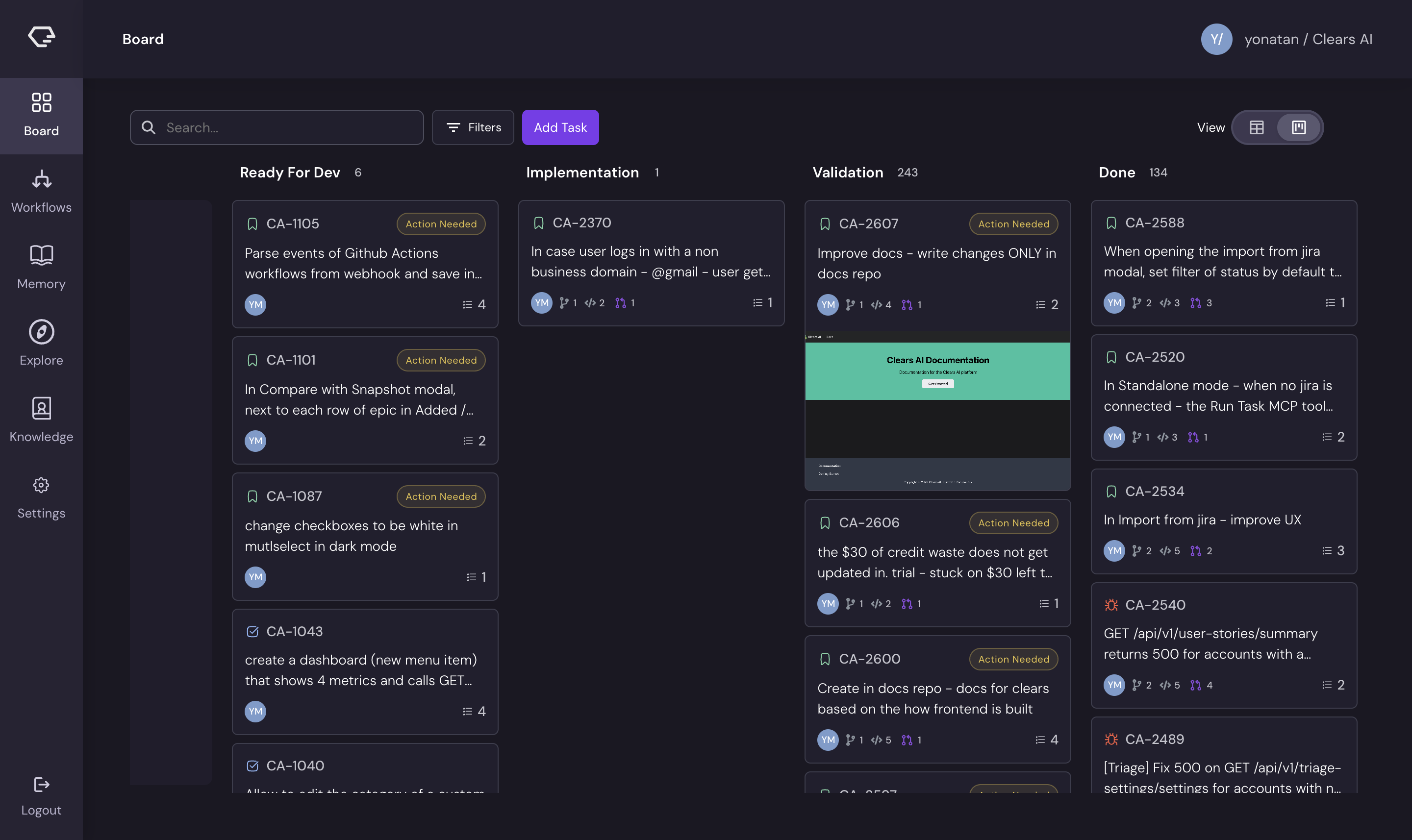
| Indicator | Color | Meaning |
|---|---|---|
| Branch badge | Blue | Number of branches created |
| Commit badge | Green | Number of commits pushed |
| PR badge | Purple (open) / Green (merged) | Number of pull requests and their state |
Hover over any badge to see details — branch names, commit messages, or PR titles and numbers. Click a PR badge to navigate directly to the pull request on your VCS provider.
These activity indicators work identically for GitHub, GitLab, and Bitbucket. For GitLab, the PR badge tracks merge requests instead of pull requests.
Real-Time Updates
The Board uses WebSocket connections to deliver real-time updates without requiring page refreshes:
- Status changes - cards move between columns as the AI progresses through the lifecycle
- GitHub activity - branch, commit, and PR badges update as the agent pushes code
- Agent activity - the AI Session tab streams events live
- Optimistic transitions - status changes appear immediately in the UI, with server confirmation following
Workflow Action Badges
Story cards display action badges that indicate the current workflow step and any required actions:
- Analyzing - the agent is exploring your codebase
- Q&A - the agent has questions that need your input
- Implementing - the agent is writing code
- Review - pull requests are ready for your review
These badges help you quickly scan the board and identify which stories need your attention.