Epics
Epics is where you hand Clears a bigger goal. You create an epic with a goal and its sources, for example a PRD. Clears reads them, asks you what is unclear, and plans the stories in the order they run. When you approve the plan, Clears creates the stories and delivers them one by one, and the epic's page shows how far it has got.
The Epics entry in the left menu, and the words "epic" and "story" on these pages, follow your account's level names. If your account calls its epics "Features", the menu reads Features. See Naming Your Levels.
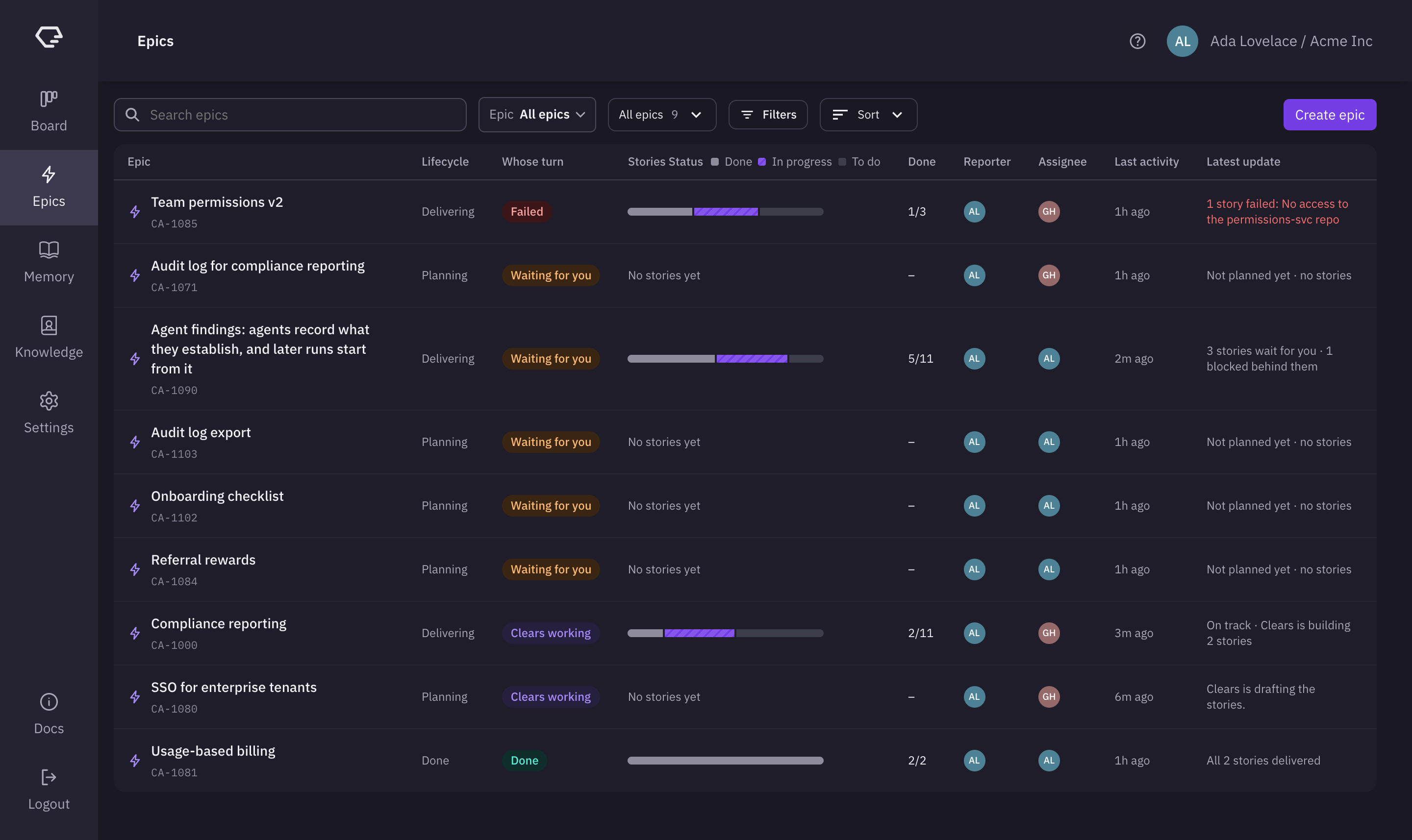
The Epics list
The list has one row per epic. Click a row to open the epic's page.
| Column | What it shows |
|---|---|
| Epic | The epic's title and key |
| Lifecycle | Planning, Delivering or Done |
| Whose turn | Waiting for you, Clears working, Failed or Done. An epic with nothing going on reads Not started |
| Stories Status | A bar of the epic's stories: Done, In progress and To do. Hover a part of the bar to see its count. An epic without stories reads "No stories yet" |
| Done | How many stories are done, for example 5/11 |
| Reporter | The epic's reporter |
| Assignee | The epic's assignee |
| Last activity | When the epic or one of its stories last changed |
| Latest update | A short line on where the epic stands, for example "3 stories wait for you" |
| Action | The epic's next step, when it has one |
Click the Epic or Done header to sort by that column.
Toolbar
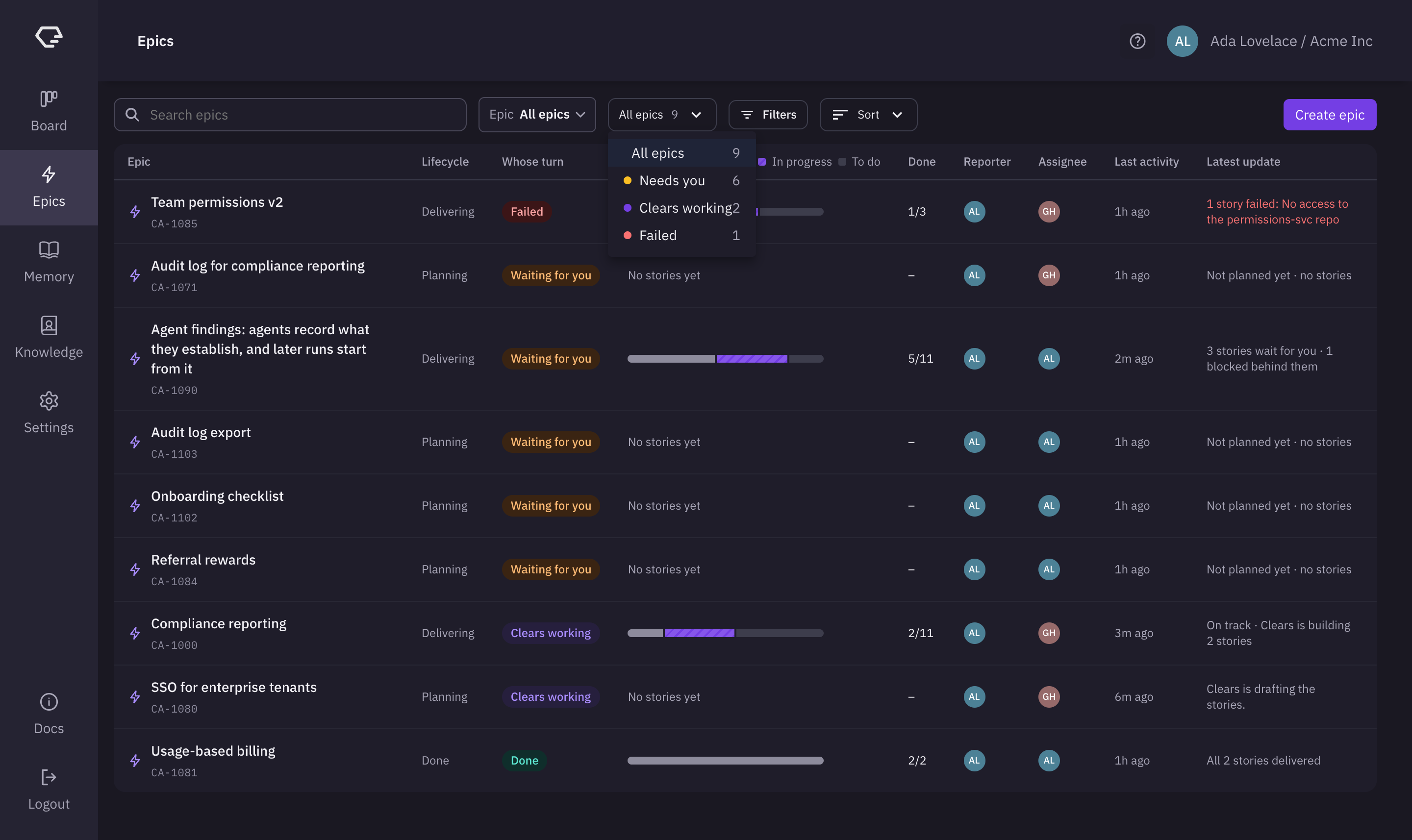
- Search epics - finds epics by title or key.
- Epic - pick one or more epics to show only those rows.
- Whose-turn filter - All epics, Needs you, Clears working or Failed, each with its count. Needs you includes failed epics, since a failure needs you too.
- Filters - narrow the list by Project, Assignee, Reporter, Priority, Lifecycle or Sprint.
- Sort - sort by Ticket ID, Summary, Last updated, Lifecycle, Reporter or Assignee, ascending or descending. By default, the epics that need you come first.
- Create epic - opens the form to create an epic.
Which epics are listed
The list shows every epic that is planning or delivering. A finished epic, one that is done or closed, is listed only if it was updated in the last 30 days.
Create an epic
Click Create epic. A form opens on the right.
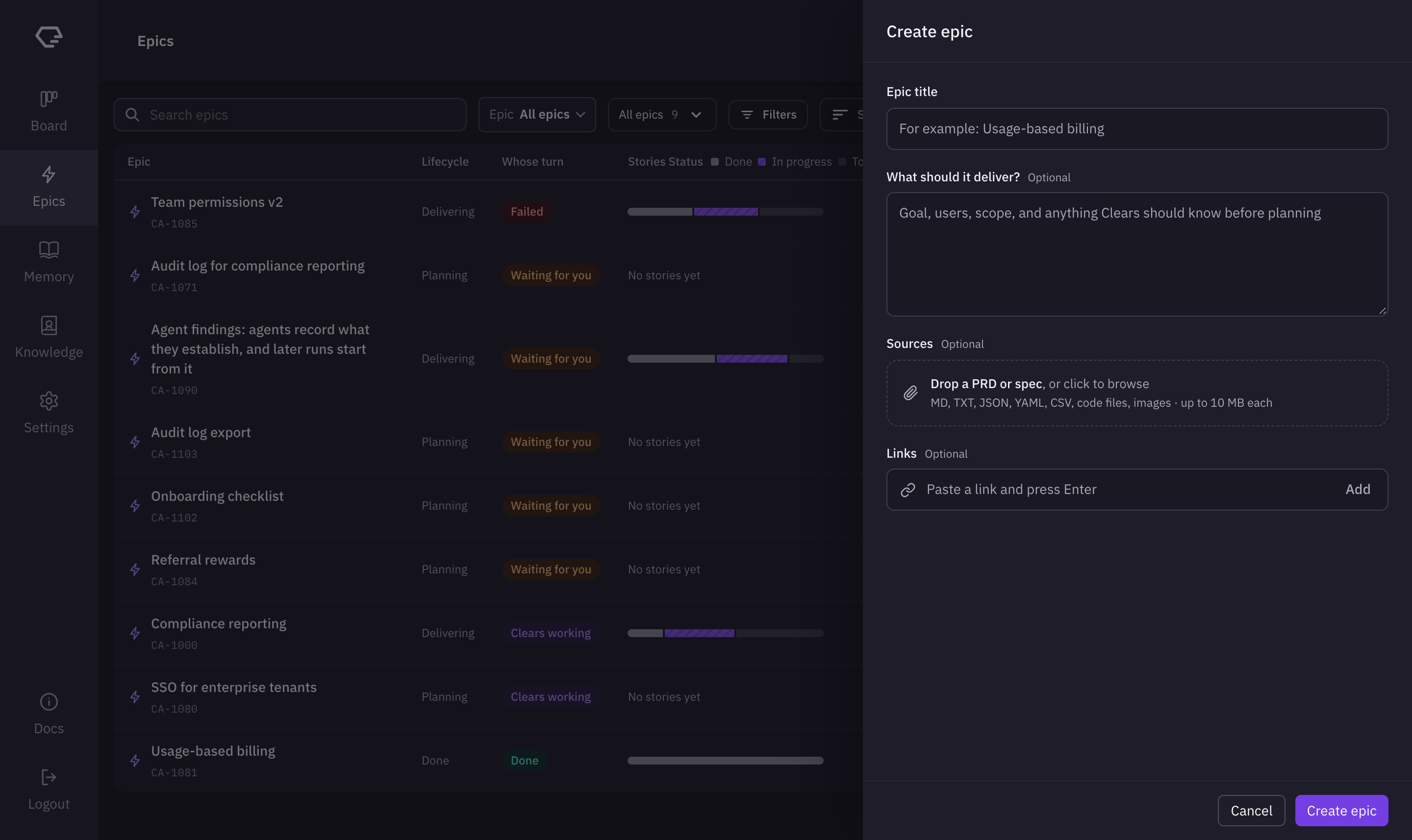
- Epic title - required. For example, "Usage-based billing".
- What should it deliver? - optional. The goal, the users, the scope, and anything Clears should know before planning.
- Sources - optional. Drop a PRD or spec on Drop a PRD or spec, or click to browse. The form takes MD, TXT, JSON, YAML, CSV, code files, images · up to 10 MB each.
- Links - optional. Paste a link, for example to a spec in Notion, and press Enter or click Add.
- Project - shown when your account is connected to a tracker. The epic needs a project there, so pick one. If you only have one project, it is already picked.
Click Create epic. Clears creates the epic, in your tracker when one is connected. What you wrote and your links become the epic's description, and your files are attached to it. Then the new epic's page opens. Planning doesn't start until you start it.
Plan an epic
While an epic is in Planning, its page has two parts. On the left are the Epic details tab (the description, the stories, the attachments, and the epic's fields under your tracker's name) and the AI session tab. On the right is the Plan.
The top of the plan shows its two steps, Refinement and Preview and launch. While Clears is working on a step, the bar reads You can leave · we'll notify you once it's ready. You don't have to wait on the page.
The header shows the epic's key, the lifecycle and the current step (for example "Planning · Answering questions"), and whose turn it is.
Start planning
A new epic reads No stories yet? Let's plan them. with the number of sources attached. Click Add sources to attach more files first, then click Start planning.
Clears reads the sources
Clears first reads your sources. The plan shows Reading sources while it does. This usually takes a few minutes.
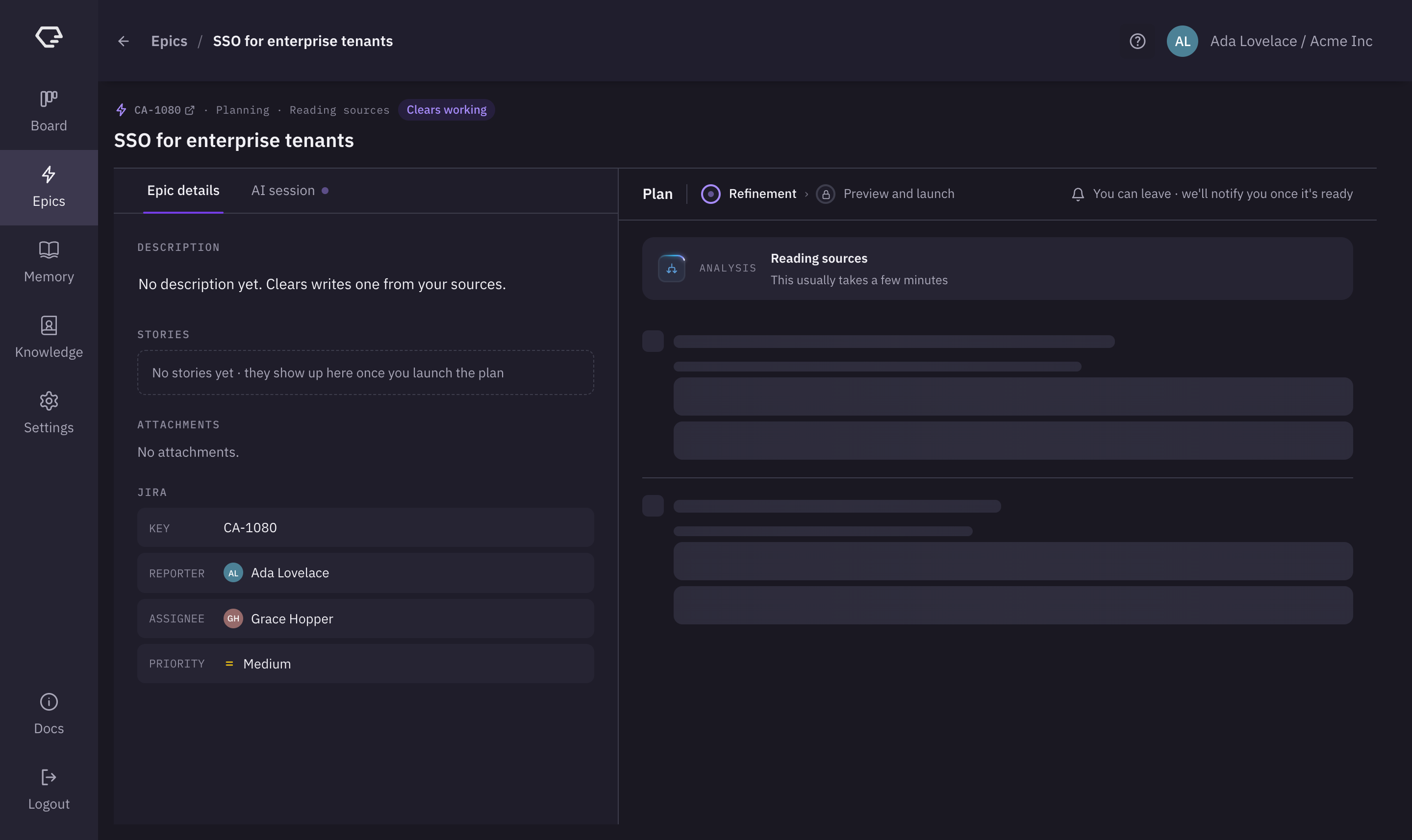
Refinement
Next, Clears asks what it needs from you to plan the stories.
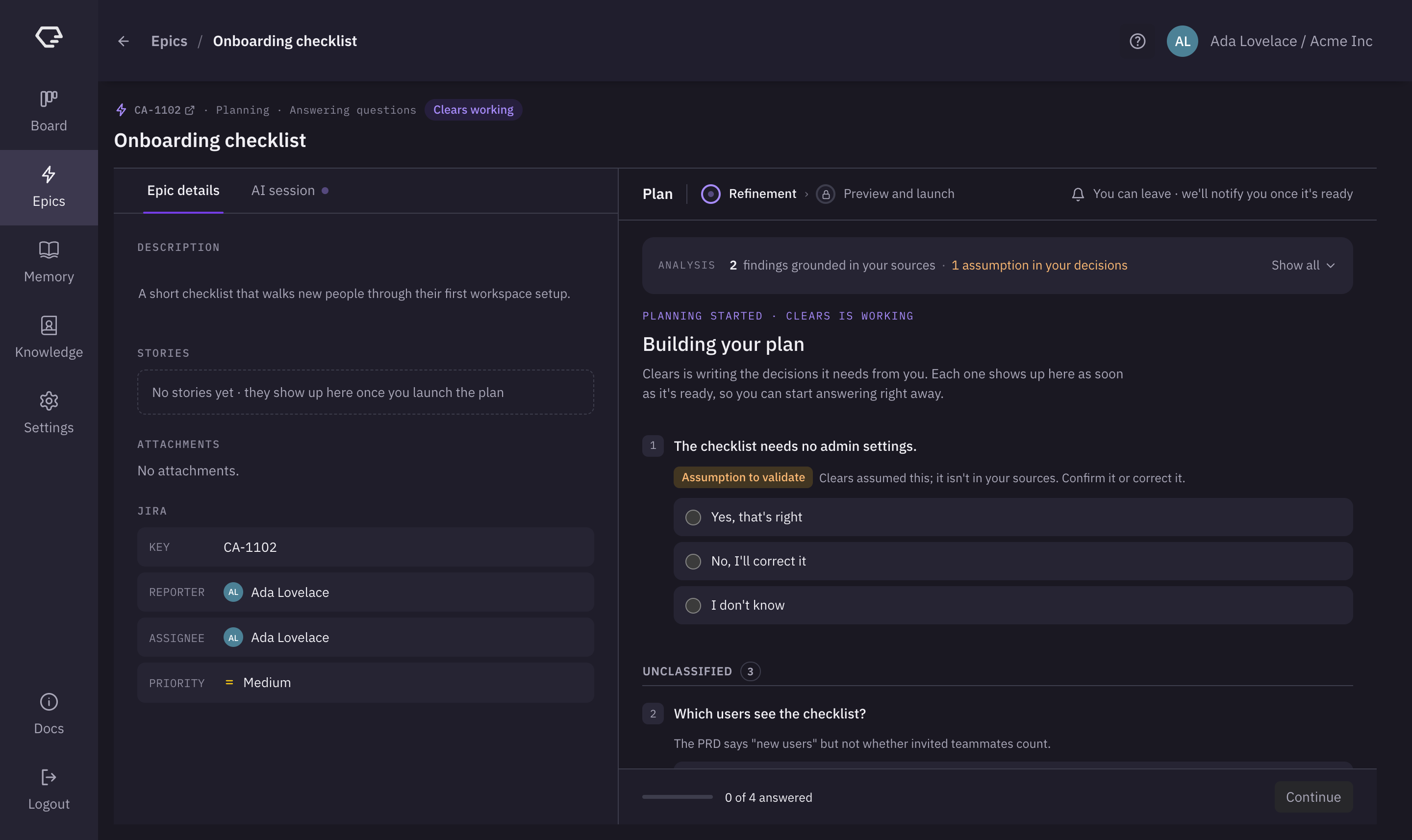
- Analysis - a summary of what Clears found, for example "2 findings grounded in your sources". Click Show all to read the findings, and the plan's intent, constraints and metrics.
- Assumptions - something Clears assumed that isn't in your sources has the label Assumption to validate. Answer Yes, that's right, No, I'll correct it or I don't know.
- Decisions - the questions Clears needs answered, grouped by audience, for example Product and Development. Each decision has options. Agent's Default marks the answer Clears takes if nobody answers. Pick an option, or choose Write my own answer.
The decisions show up one by one while Clears writes them, so you can start answering right away. The footer counts your answers, for example "1 of 4 answered". When you have answered every one, click Continue. Clears may come back with a few more questions, or move on to the stories.
Preview and launch
Clears drafts the stories, then shows them for your approval under the heading Launch n stories to the board.
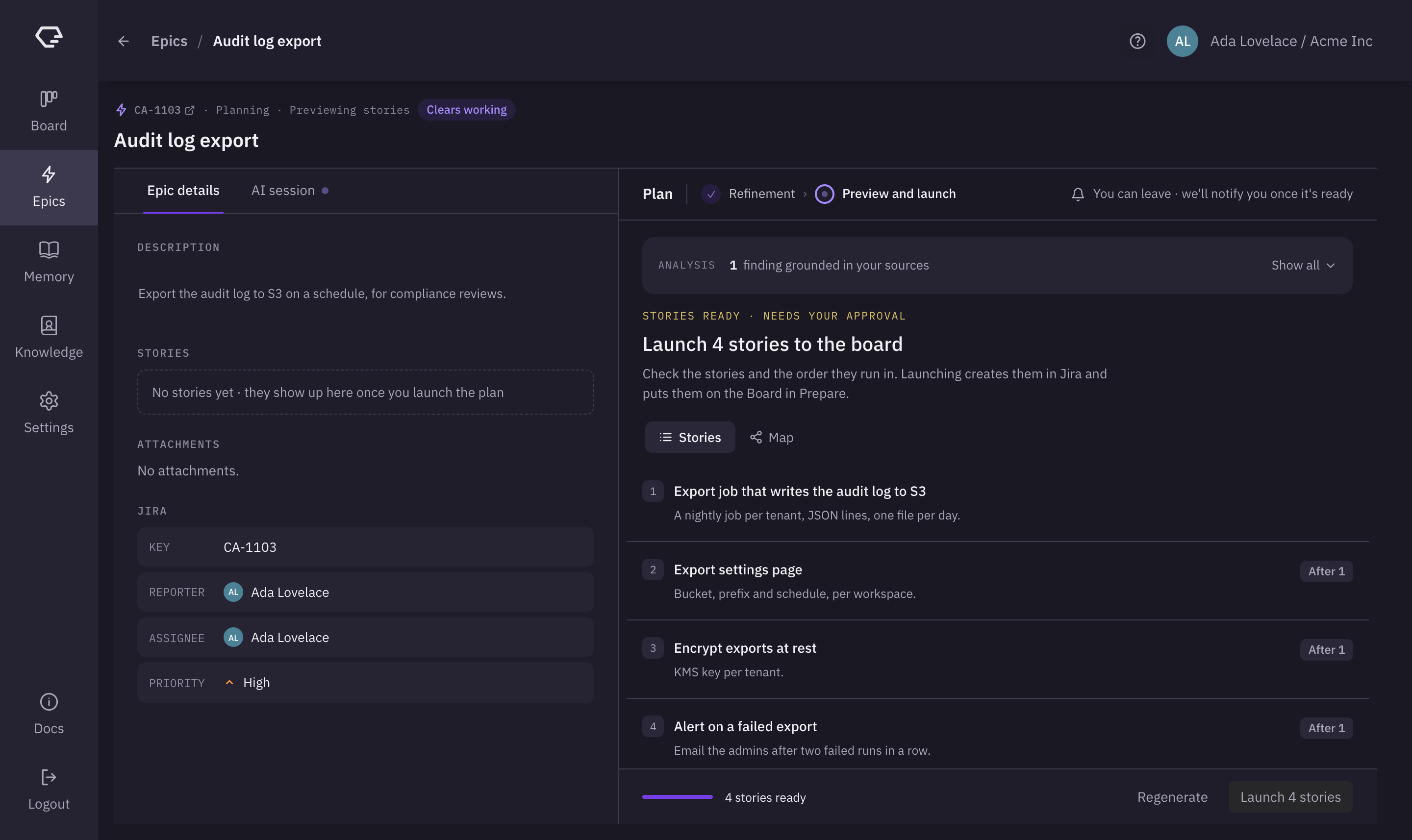
- Stories - the proposed stories, numbered in the order they run. Each has a short summary. A story that waits for others shows a chip such as After 1.
- Map - the same stories as a graph of what runs after what.
- Regenerate - asks Clears to draft the stories again.
- Launch n stories - creates the stories in your tracker, links them to the epic, and puts them on the Board in Prepare.
While Clears creates the stories, the plan counts them, for example "2 of 4 created". When it is done, the epic moves to Delivering.
Deliver an epic
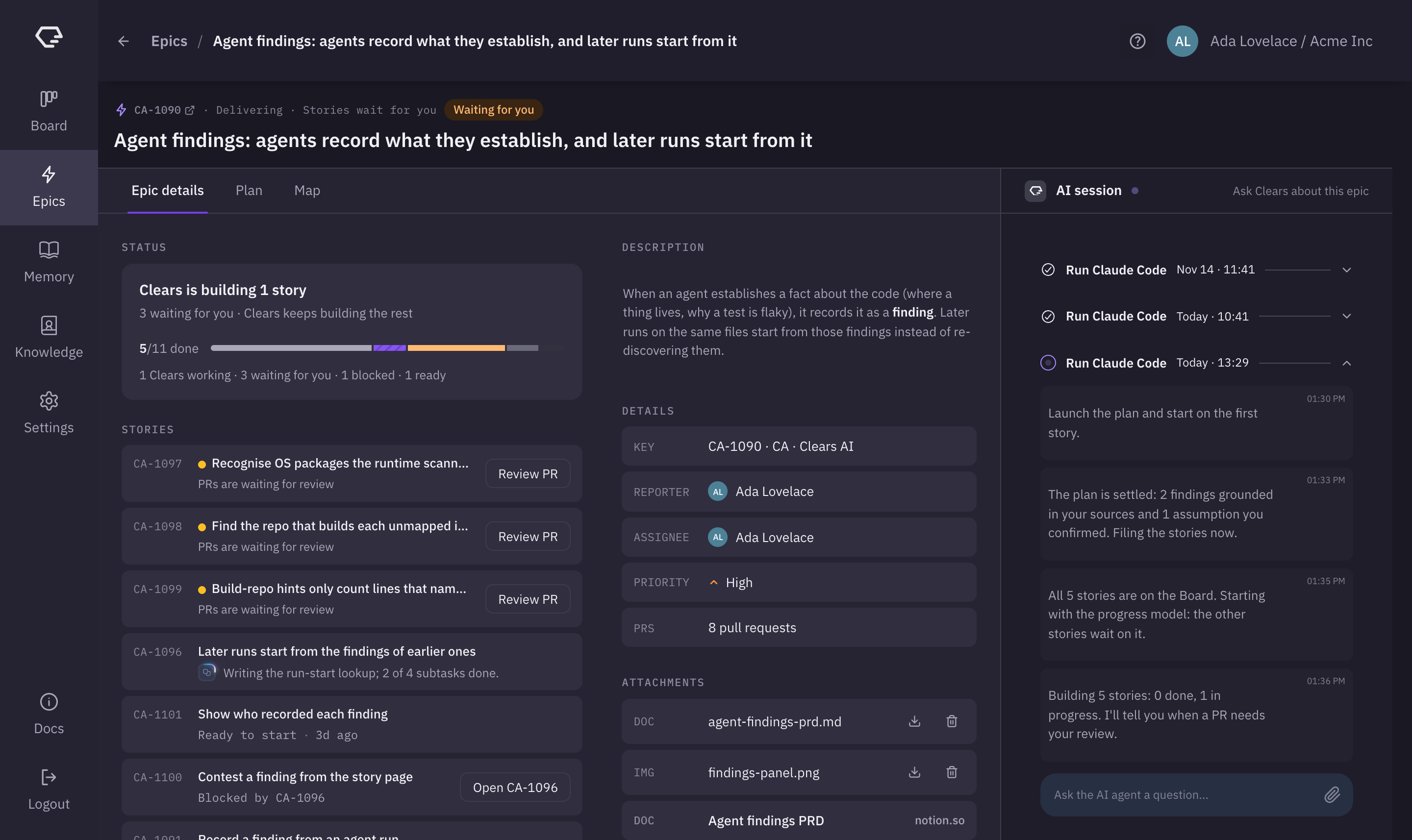
While an epic is Delivering, its page shows the work on its stories.
Header
The header shows:
- Key - the epic's key. It links to the epic in your tracker.
- Lifecycle and current state - for example "Delivering · Stories wait for you" or "Delivering · Building stories".
- Planned with Clears - shown when Clears planned the epic.
- Whose turn - Waiting for you, Clears working, Failed or Done.
Below the header are three tabs: Epic details, Plan and Map. The AI session is on the right.
Status
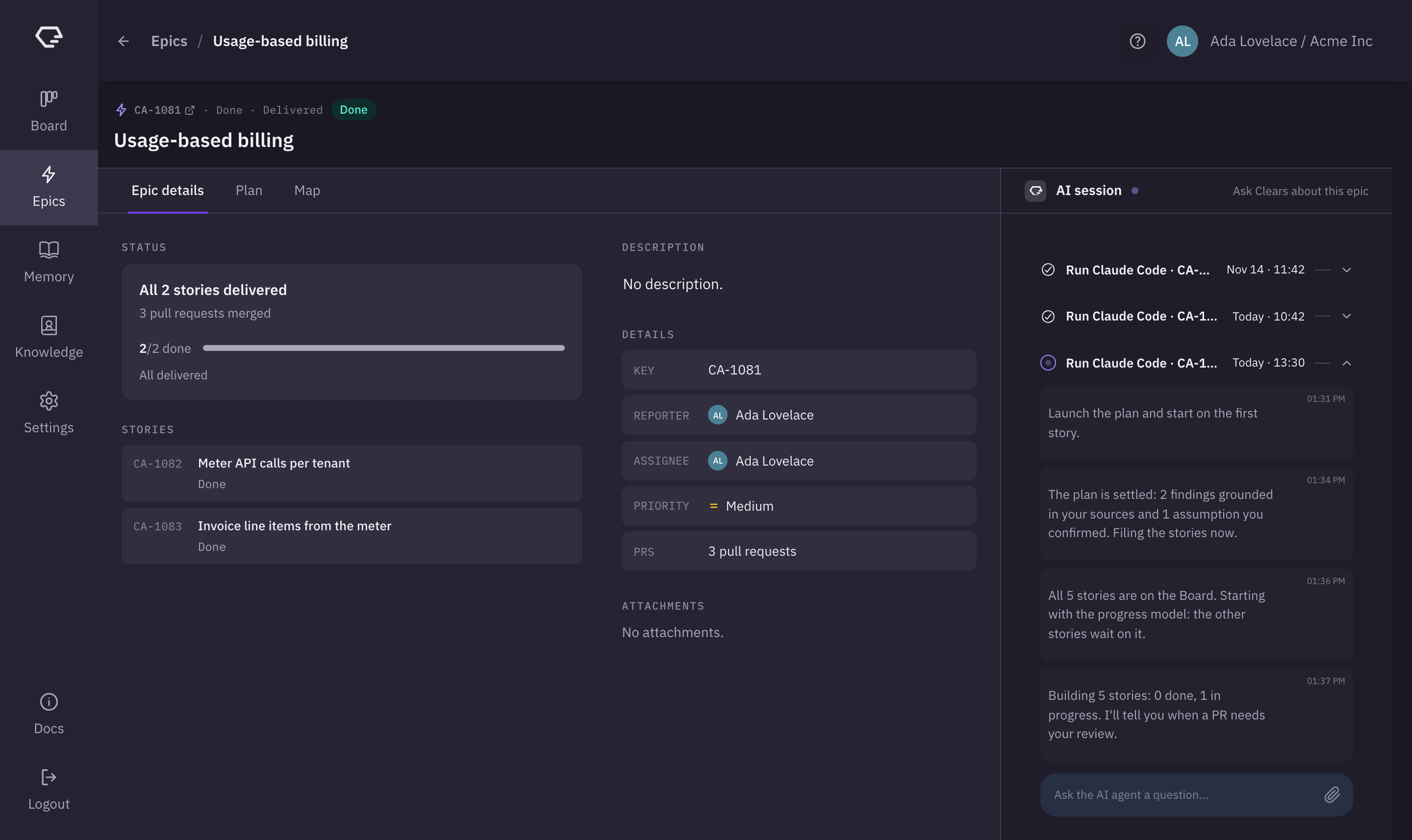
The status card sums up the epic:
- Headline - for example "Clears is building 1 story", or "1 story is ready to start". Below it, what needs you, for example "3 waiting for you · Clears keeps building the rest".
- Done count - for example "5/11 done", with a bar of the stories by state.
- Counts by state - for example "1 Clears working · 3 waiting for you · 1 blocked · 1 ready".
- Add Work - on an epic Clears planned. Opens the AI session with a message ready for you to describe work to add. Clears proposes new stories for it in the Plan tab.
Stories
The epic's stories, the ones that need you first: failed stories, then the stories waiting for you, then the ones Clears is working on, in progress, ready, blocked and done.
Each row shows the story's key, its title and a line on where it stands, such as "PRs are waiting for review" or "Ready to start". A story that needs you has its action button, for example Review PR or Fix and retry. A blocked story offers Open and the key of the story it waits for, for example Open CA-1096.
Click a story to open it in the Ticket Panel, where you can act on it without leaving the epic.
Description, Details and Attachments
- Description - the epic's description. Click it to edit it.
- Details:
- KEY - the epic's key and its project.
- REPORTER and ASSIGNEE - click to change them.
- PRIORITY - the epic's priority.
- PRS - how many pull requests the epic's stories have opened, for example "8 pull requests".
- Attachments - the epic's files, tagged DOC or IMG, and its linked documents. Download a file, or remove it.
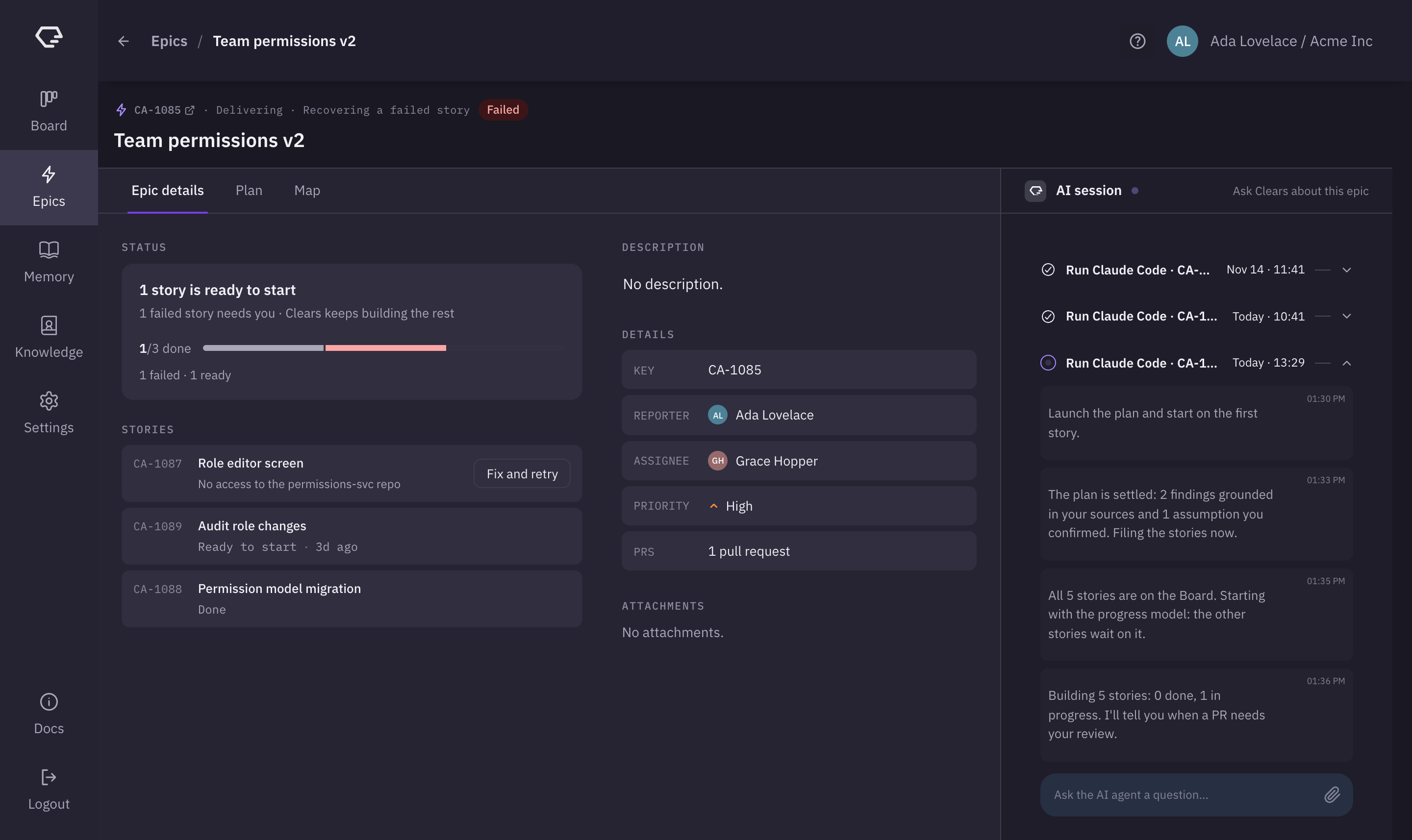
A failed story
When a story fails, the epic reads Failed and the header says "Delivering · Recovering a failed story". The failed story is first in the list, with what went wrong and Fix and retry. Clears keeps building the other stories.
A done epic
When every story is delivered, the epic reads Done. The status card reads, for example, "All 2 stories delivered", with how many pull requests were merged.
Map tab
The Map tab draws the epic's stories as a dependency map: each story is a box, and an arrow goes from a blocker to the story that waits for it. Click a story to open it in the Ticket Panel.
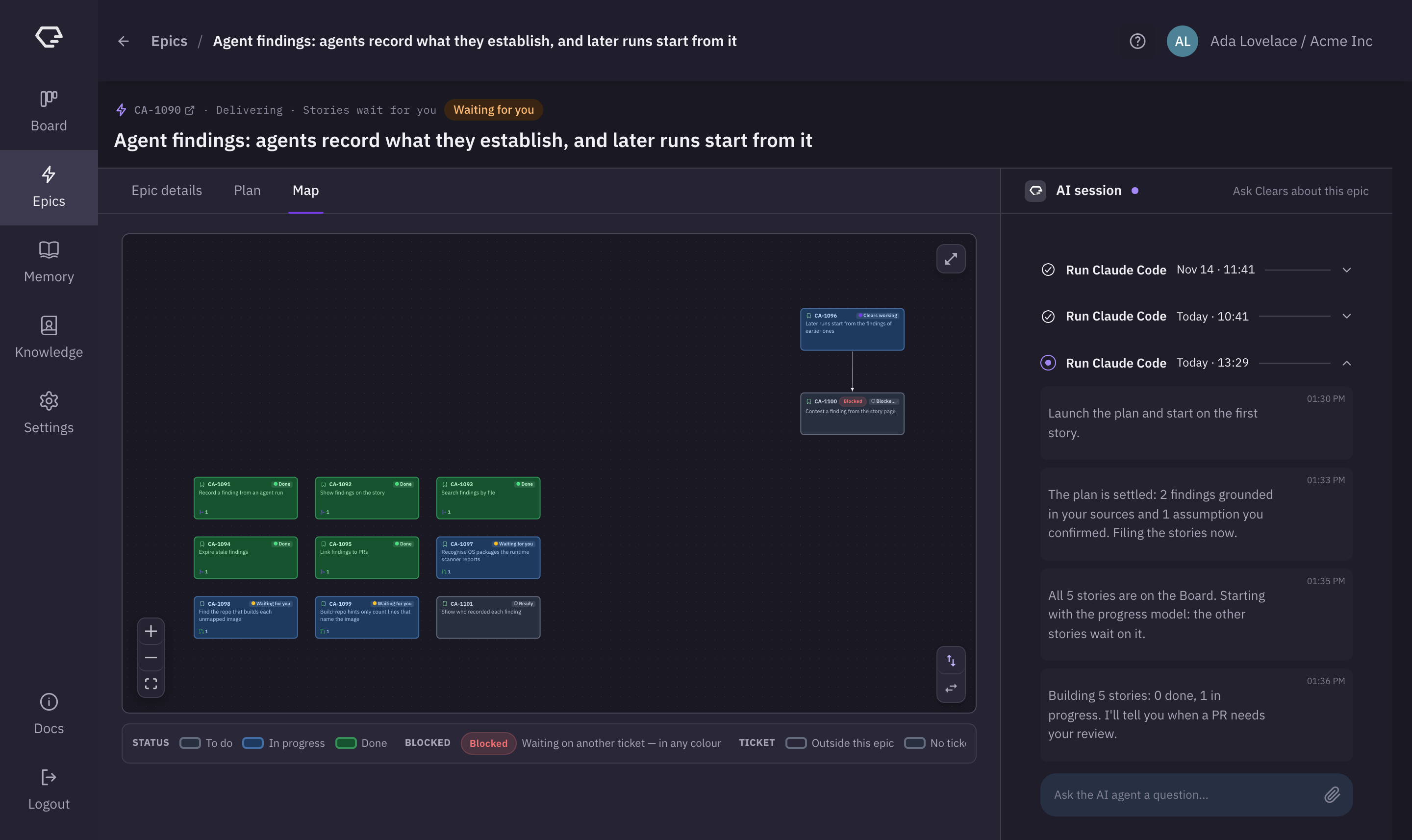
The legend below the map explains it:
- Status - the box's color: To do, In progress or Done.
- Blocked - a Blocked badge marks a story waiting on another ticket, in any color.
- Ticket - a ticket Outside this epic, or with No ticket synced.
- Arrow - Blocker → waiting, or Released — no longer gates once the blocker is done. An arrow the plan added reads Suggested by the planner.
Use the controls on the map to zoom in and out and fit the map to the view, switch between Vertical and Horizontal layouts, and open the map in Full screen.
Plan tab
The Plan tab shows the plan of an epic that Clears planned: its Intent, Findings, Decisions (what you told Clears while planning), Constraints and Metrics. Expand a section to read it.
When you add work to the epic, the new stories Clears proposes for it are first in the tab, under New stories. A dot on the Plan tab shows they are waiting. Click Launch n stories to create them.
An epic that Clears did not plan, for example one created in your tracker, shows No plan.
AI session
The AI session panel is on the right of the epic's page, with Ask Clears about this epic in its header. A dot shows while Clears is working on the epic.
- Run history - each run on the epic, with its time. Expand a run to read what Clears did.
- Question field - type in Ask the AI agent a question... to ask about the epic or guide Clears. Attach files with the attach button.
While the epic is planning, the AI session is the AI session tab on the left.
Epics and the Board
The Board shows the stories, bugs and tasks Clears works on. Epics have their own page, and they show on the Board through their stories:
- Epic filter - on the Board's toolbar, pick one or more epics to show only their stories.
- Epic chip - each card shows the epic its story belongs to.
- Launched stories - when you launch an epic's plan, its stories land on the Board in Prepare, and they move through the columns like any other ticket.
An epic itself never shows as a card on the Board, and you don't run it from there: Clears runs the epic's stories, and you follow the epic on its own page. Creating an epic doesn't add a card to the Board.
In a story's details in the Ticket Panel, the Epic field shows the story's epic. On an open story, a click on it opens the list of epics, so you can move the story to another epic. On a finished story the field can't be edited, and a click on the epic opens it in the same panel, with its Epic details tab. When the epic's plan waits for you, the panel shows the step to act on: the epic decisions or the story proposals. When you import tickets from your tracker, the list offers only stories, bugs and tasks, and its Epic filter narrows the list to the stories of an epic.