Settings
The Settings page lets you configure your Clears AI workspace, manage integrations, and invite team members.
General
Anthropic API Key
Clears AI uses Anthropic's Claude models for AI execution. You must provide your own Anthropic API key to enable story execution.
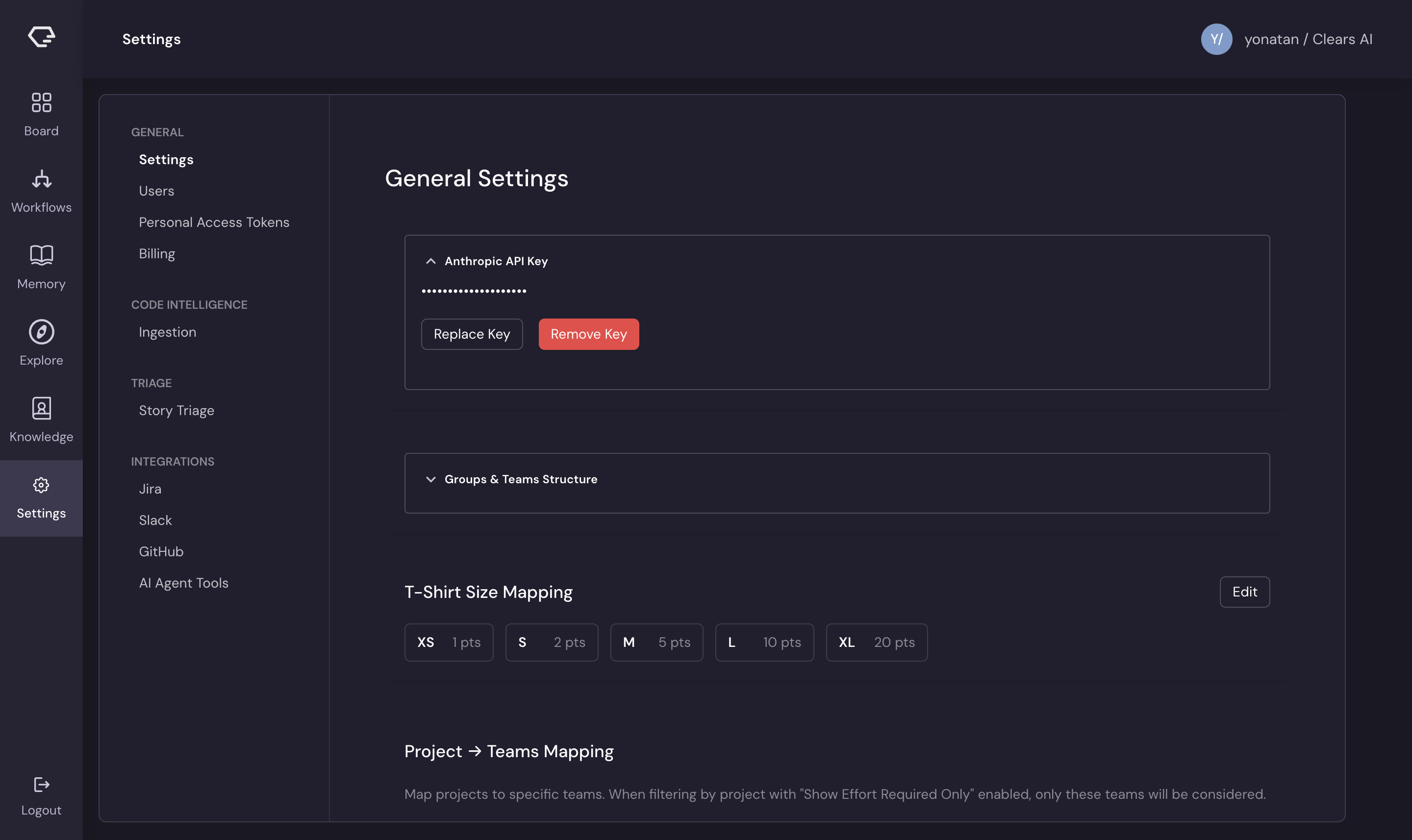
Key management actions:
- Set key - enter your Anthropic API key for the first time
- Replace key - update to a new key (e.g., when rotating credentials)
- Remove key - delete the stored key (disables AI execution)
The API key is stored securely and used for all agent executions in your workspace. Usage is billed directly to your Anthropic account.
Without a valid Anthropic API key, stories cannot be executed. The AI agent requires this key to function.
Users
Manage team members who have access to your Clears AI workspace.
Inviting Users
- Navigate to Settings → Users
- Click Invite User
- Enter the user's email address
- Select a role
- Click Send Invite
The invited user receives an email with a link to join your workspace.
Roles
| Role | Permissions |
|---|---|
| Admin | Full access - manage settings, integrations, users, and all stories |
| Member | Create and manage stories, interact with agents, view memory |
Seat Management
Your workspace has a seat limit based on your plan. The Users section shows:
- Current seats used - how many team members are active
- Total seats available - your plan's seat limit
- Pending invites - invitations that haven't been accepted yet
VCS Provider (GitHub / GitLab / Bitbucket)
VCS provider settings configure how the AI agent interacts with your repositories. The settings page adapts based on which provider you have connected.
Execution Repositories
Select which repositories (or projects, for GitLab) the AI agent can work in. Only resources accessible through your connected provider appear here.
- Add repositories — select repos from the list of available installations or connected projects
- Remove repositories — disconnect repos you no longer want the agent to access
Commit Message Format
Customize the format of commit messages the AI agent creates. The format supports placeholders that are replaced with actual values at commit time:
| Placeholder | Replaced With |
|---|---|
{story_key} | The story identifier (e.g., CA-123) |
{story_summary} | The story title |
{subtask_key} | The subtask identifier |
{subtask_summary} | The subtask title |
{description} | A description of the changes |
Example format:
[{story_key}] {description}
Produces commits like:
[CA-123] Add user authentication endpoint
AI Agent Tools
Configure external tool integrations that extend your AI agents' capabilities via MCP (Model Context Protocol) servers.
MCP Server Configuration
Each MCP server card displays:
- Server name - the tool provider name
- Status - whether the connection is active
- Credentials - authentication details for the server
Available actions:
- Add server - connect a new MCP server
- Edit credentials - update authentication for an existing server
- Test connection - verify the server is reachable and responding correctly
- Remove server - disconnect the server
MCP servers provide additional tools that agents can invoke during story execution, for example, database query tools, cloud infrastructure management, or monitoring integrations.