Ticket Panel
The ticket panel shows everything about one ticket without leaving the page. It opens when you click a card on the Board, and when you click a story row on an Epic page. The panel shows the step that waits for you, the ticket's details and the AI session.
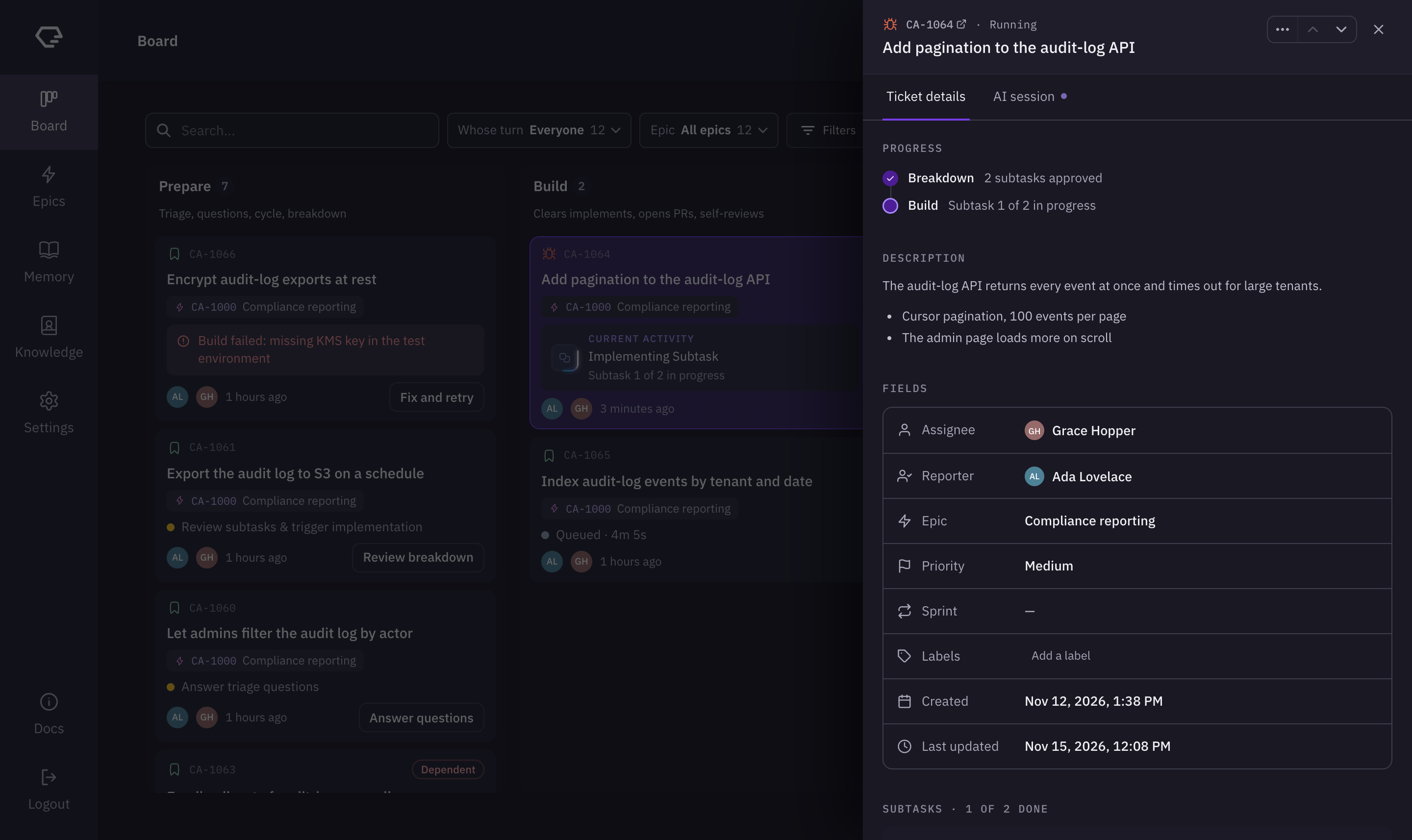
When nothing waits for you, the panel has one column with two tabs: Ticket details and AI session. When it is your turn, the panel widens to two columns. The step that waits for you is on the left, and the tabs are on the right. Drag the divider between the columns to resize them.
Header
The header sits at the top of the panel:
- Type icon and key - the ticket's type and identifier. The key links to the ticket in your tracker and opens it in a new tab.
- Stage line - the ticket's current stage, followed by the step it is at when that step is yours. For example, "3 Questions for you" when triage has questions for you.
- State label - Failed when a run failed, or Queued when a run is waiting to start.
- Title - the ticket's summary.
- … menu - the ticket's actions:
- Open activity log - shows the ticket's activity log in place of the tabs.
- Copy link - copies a link to the ticket on the Board.
- Mark as done - closes the ticket. Shown only while the ticket is waiting for validation.
- Cancel story - cancels the ticket. Shown on any ticket that isn't finished yet. The menu uses your account's name for a story (see Naming Your Levels).
- Previous ticket / Next ticket - the up and down arrows open the ticket above or below this one, in the order the page shows them. You can also press Page Up and Page Down.
- Close - closes the panel. Escape also closes it.
If you have typed something you haven't sent yet, such as answers or a prompt, the panel asks before you close it or move to another ticket.
The step that waits for you
When it is your turn, the left column of the panel shows the one step Clears needs from you. Each step has a heading, its content and its buttons at the bottom.
Answer triage questions
When triage has open questions, the step reads Clears paused · needs your answers, with a heading such as "3 questions before Clears can continue".
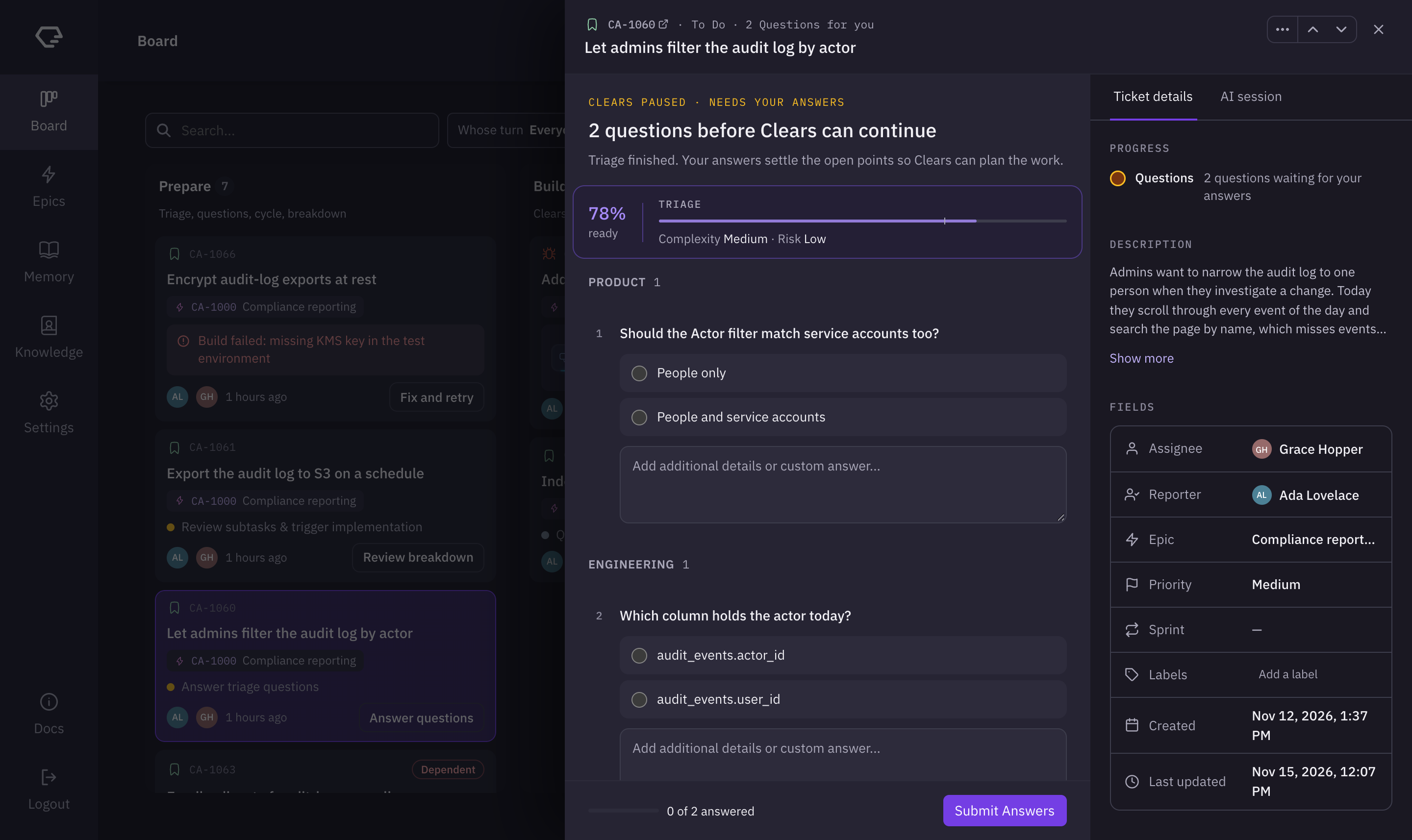
- Triage summary - readiness as a percentage ("ready"), a bar against your account's readiness threshold, and the ticket's Complexity and Risk.
- Questions - grouped by audience, for example Product and Engineering, and numbered across the groups. Each question can offer options. Pick one, or type in the Add additional details or custom answer... field. Picking an option fills the field, and you can edit it.
- Answered by the agent - questions Clears answered itself are listed in a folded section. Click Change to give a different answer.
Every question needs an answer. The footer shows how many you have answered, for example "1 of 3 answered". Click Submit Answers to send them. Clears then picks the ticket back up.
Review enrichment
When Clears has enriched the ticket and waits for your approval, the step shows a bar that reads Review enriched content, with the button Approve and breakdown to subtasks. The enriched description is shown below the bar, so you can read it before you approve. Approving lets Clears break the ticket down into subtasks.
Approve the breakdown
When Clears has proposed a breakdown, the step reads Clears paused · needs your approval, with the heading Approve the breakdown.
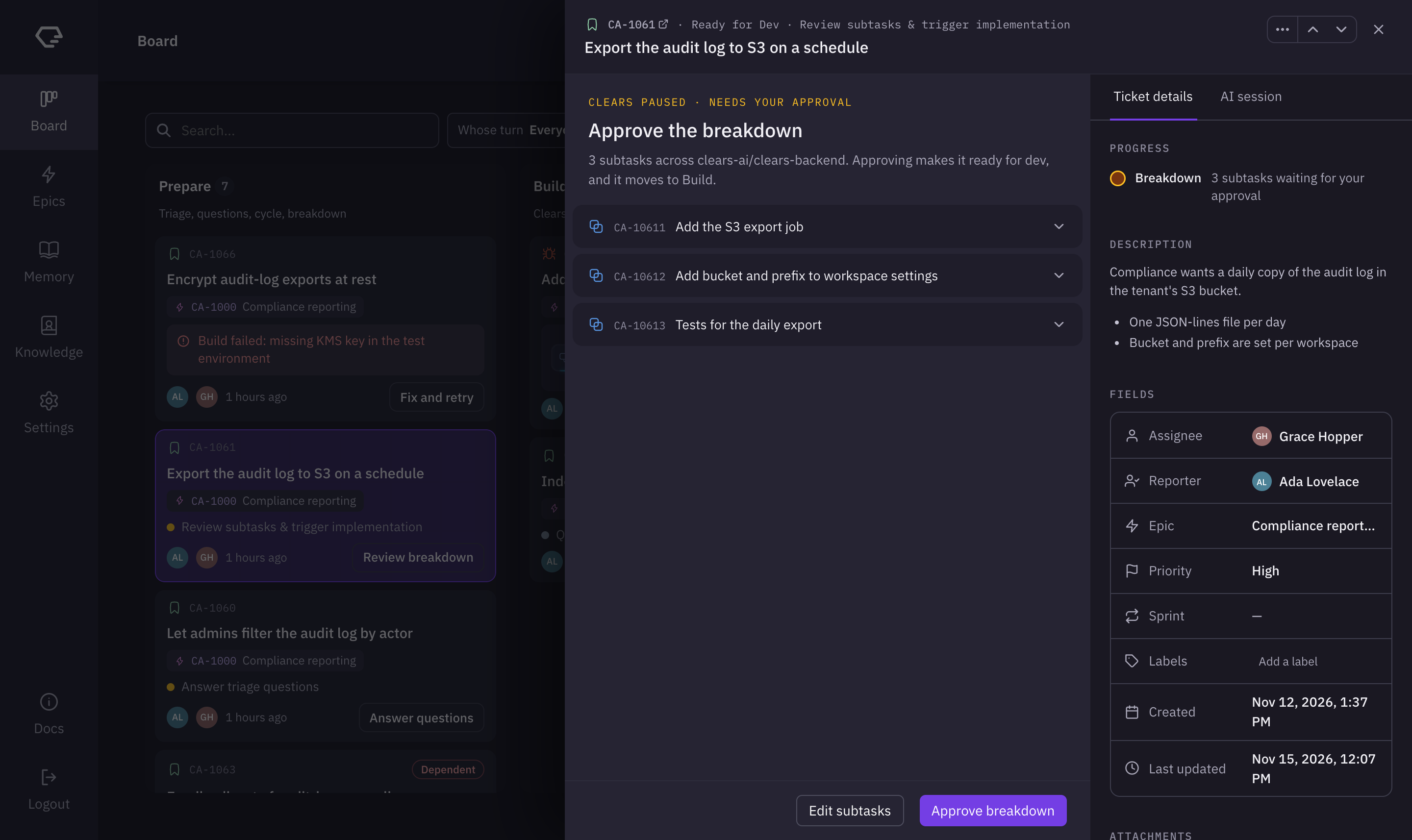
The text under the heading says how many subtasks there are and which repositories they span. Approving makes the ticket ready for development, and it moves to Build. Below it is the list of subtasks. Expand a subtask to see its Done when criteria, its Repo and its Files.
- Edit subtasks - rename a subtask, edit its description, or Remove it.
- Approve breakdown - approves the breakdown and starts the build.
Review pull requests
When the work is ready for review, the step reads Ready for your review, with a heading such as "Review and merge 2 PRs".
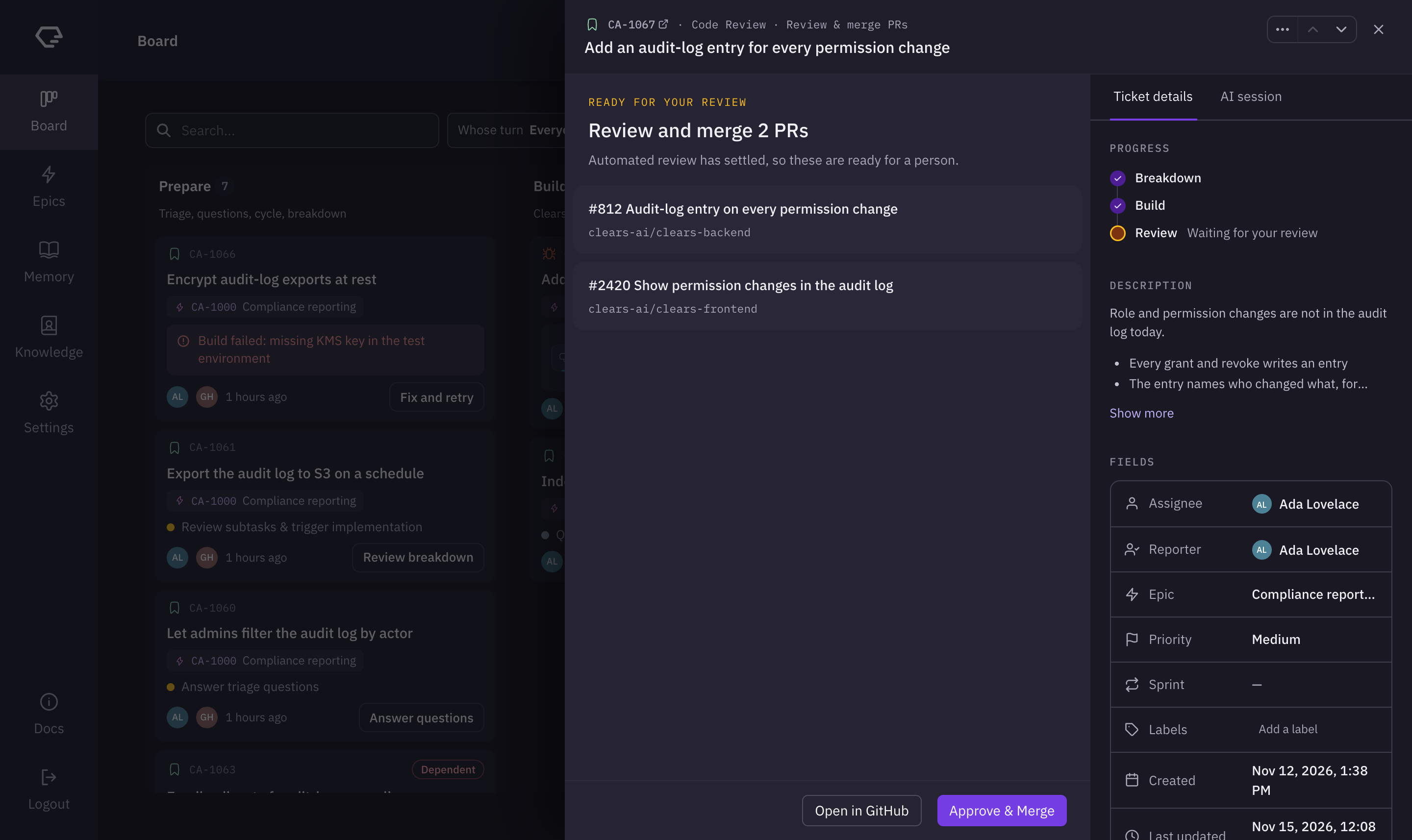
Each open pull request shows its number and title (a link to the pull request), its repository, and a checks line: Checks passed, or how many checks are failing or pending.
- Open in GitHub - opens the first pull request in a new tab.
- Approve & Merge - after you confirm, approves and merges every open pull request. A draft, or a pull request that can't be merged yet, is skipped and named in the step.
Open in GitHub and Approve & Merge are available for GitHub pull requests only, and Approve & Merge needs your GitHub account to be connected. Without it, the step reads Connect GitHub to merge. Pull requests on GitLab or Bitbucket are listed with links, and you review and merge them in your provider.
Start Triage
When a ticket waits for you to start triage, the step reads Waiting for you, with the heading and button Start Triage.
Run
When triage is done and the ticket is ready for Clears to implement it, the step reads Triaged · ready to run, with the heading Ready to run. It shows:
- Triage summary - readiness, Complexity and Risk, as in the questions step. Expand Confidence reasoning to see why triage scored the ticket as it did.
- Run settings:
- Repositories - the repositories Clears works in. Triage's suggestions, or the ones saved for the ticket, are pre-selected. Pick a base branch for each one.
- Skills (optional) - the skills Clears uses on the run.
- Questions from triage - if triage left optional questions open, they are in a folded section marked Optional. Answer them to re-run triage with your answers, or click Skip to run the ticket as it is.
Click Run to save the settings and start the run. Open the menu beside it and choose Run (Low priority) to start a low-priority run. When you need at least one repository first, the footer says so.
Needs attention
When a ticket needs you for another reason, the step reads Waiting for you, with a heading that names what is needed. It shows the reason when there is one. Its buttons are Open AI session and, when the ticket is ready to run, Run. When Clears doesn't support the ticket's type, the step offers the ways to proceed instead.
Epic decisions
When the plan for an epic waits on your decisions, the step reads Clears paused · needs your decisions, with a heading such as "2 decisions before the plan can continue".
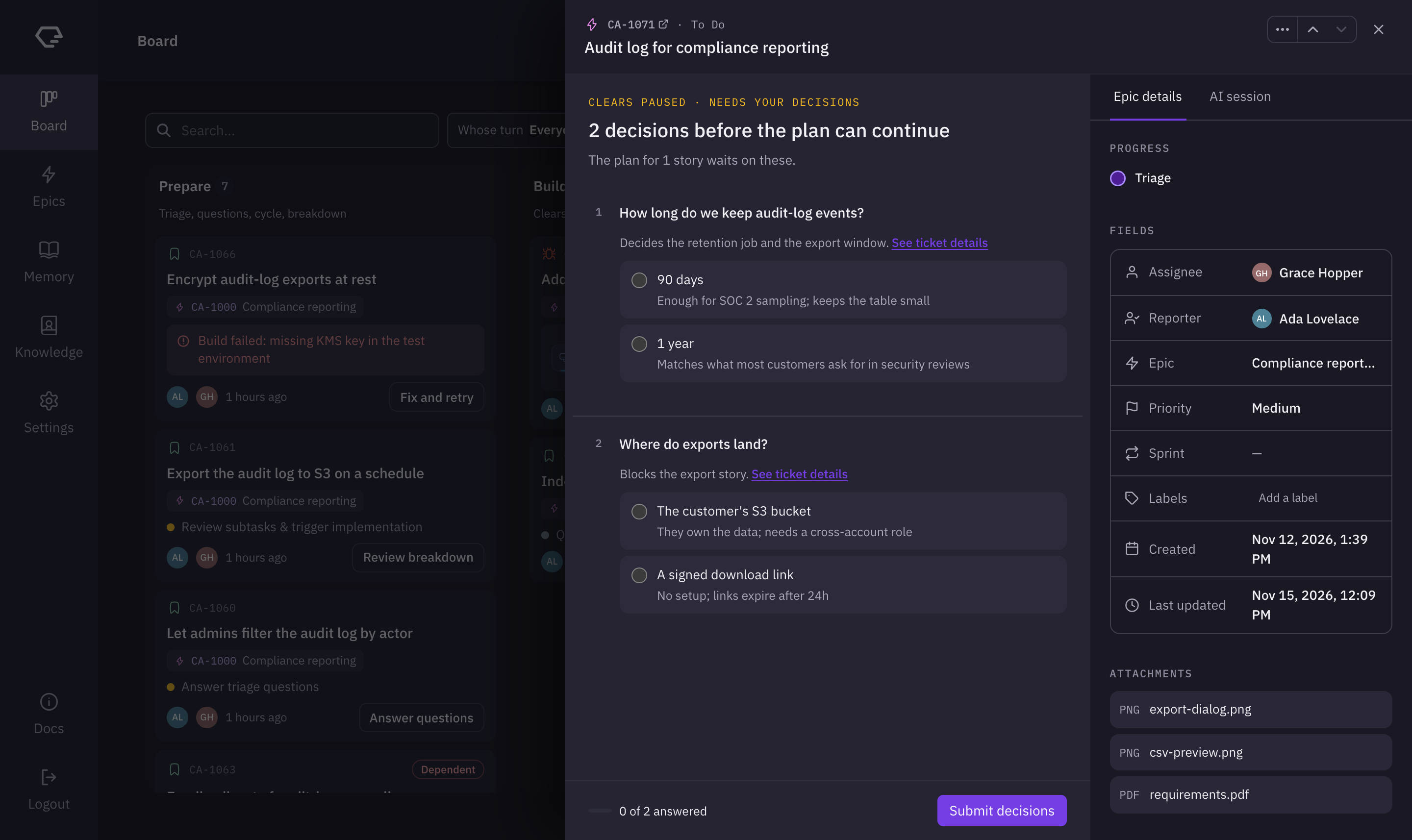
Each decision lists its options, with the reasoning for each. Click See ticket details to read the epic's details first. Every decision needs an answer, and a decision is recorded permanently once you submit it. Click Submit decisions to send them.
Epic story proposals
When the plan for an epic proposes stories that don't exist yet, the step reads Clears paused · needs your approval, with the heading Approve the story proposals. Each proposed story is marked New. Click Approve & Create Stories to create them in your tracker and start delivery. If the plan changed after the proposals were made, the step warns you and offers Update Proposals as well.
After you act
When you finish a step, the left column confirms it, for example Answers sent, Breakdown approved or Approved and merged, with Handed back to Clears · just now. It shows when the ticket comes back to you and links to Follow it in AI session. When other tickets wait for you, click Next to open the next one.
Alerts above the tabs
A failed run and a ticket waiting for validation don't widen the panel. They show as an alert above the tabs.
Failed run
When a run fails, the header shows Failed and the alert shows what went wrong.
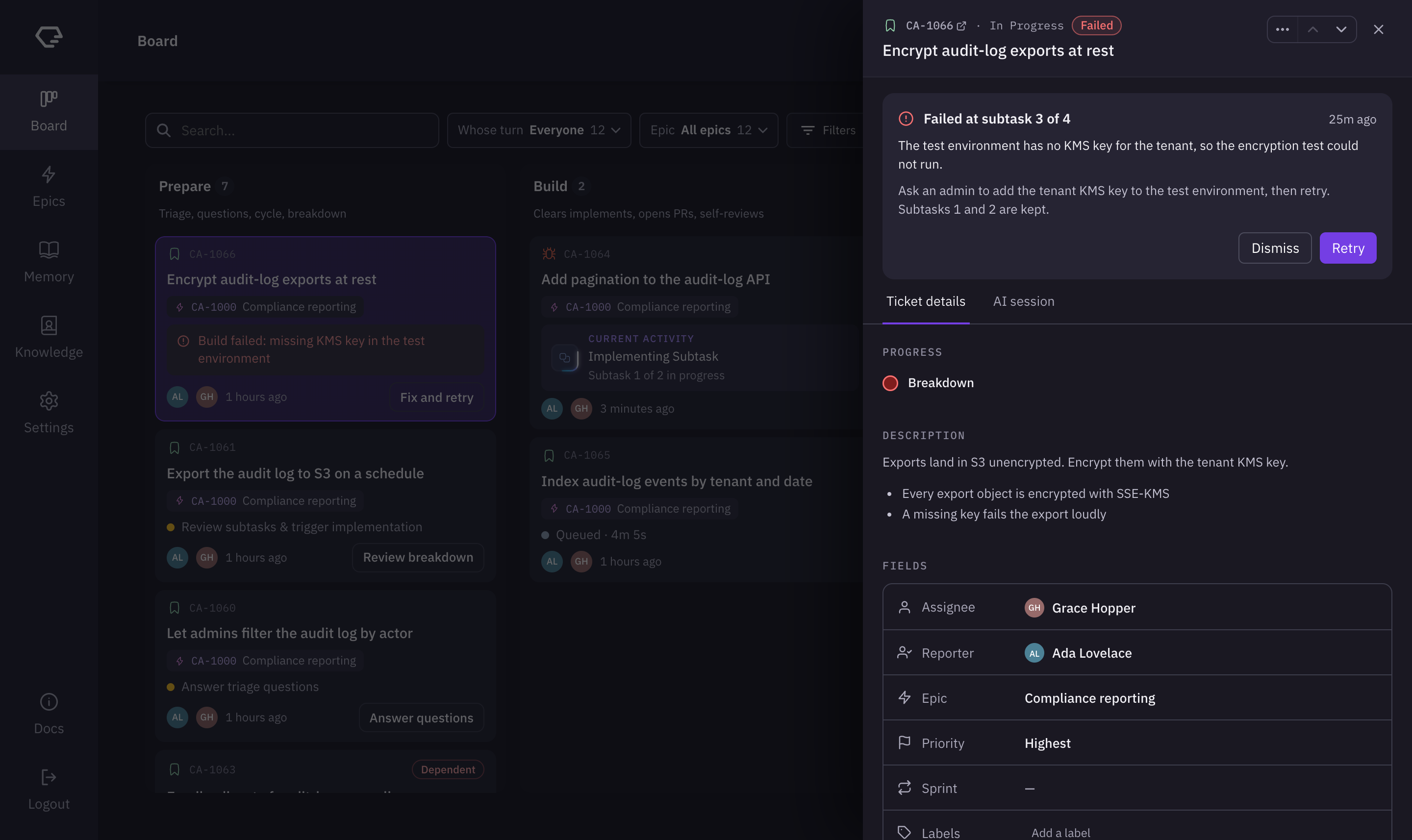
- What happened - where the run stopped, such as "Failed at subtask 3 of 4", how long ago, and the cause.
- What fixes it - Clears' recommendation, and anything to do before you run it again.
- Show full error - the run's full error, when it says more than the cause.
- Dismiss - dismisses the failure.
- Retry - after you confirm, runs it again.
If the failed run's work has since reached pull requests, the alert says so and lists them instead.
Validation
When the work is delivered and the ticket waits for you to close it, the alert reads Validation needed, with the button Mark as Done. If the ticket still has open pull requests, Clears asks you to confirm first.
Ticket details tab
The Ticket details tab (Epic details for an epic) shows the ticket's sections in this order. Progress and Attachments are always shown. Most other sections show only when they have something in them.
Progress
The steps the ticket has gone through, up to the current one: Triage, Questions, Breakdown, Build, Review and Done. A step the ticket skipped, such as Questions when nothing was asked, is left out. Each step has a state:
- Done - a check mark, with a detail such as "2 subtasks approved" or "Merged", and a date for Triage and Done.
- Clears working - Clears is on this step, for example "Subtask 1 of 2 in progress", or "Queued, starts when capacity frees up".
- Waiting for you - for example "3 questions waiting for your answers" or "Waiting for your review".
- Failed - the step where the run failed.
Progress follows Clears' own state, so it always matches the column the card is in on the Board.
Description
The ticket's description. Click Show more to read a long one in full. While the step on the left shows the description, this tab leaves it out.
Bug details
On a bug, the long-text fields your account has configured, such as steps to reproduce, each under its own heading.
Fields
| Field | Editable |
|---|---|
| Assignee | Yes, including Unassigned |
| Reporter | Yes |
| Epic | Yes. Pick from a searchable list of epics, or choose none |
| Priority | No |
| Sprint | Yes, where your tracker supports it |
| Labels | Yes |
| Created | No |
| Last updated | No |
Click a value to change it. Clears saves the change to your tracker. If the tracker refuses it, the old value comes back and Clears tells you why. When a field can't be edited, the epic opens in the panel when you click it.
Subtasks
The ticket's subtasks. While the ticket is being built, the heading counts them, for example "Subtasks · 1 of 2 done". Expand a subtask to see its details.
Dependencies
- Blocked by - the tickets this one waits for. Use Search tickets to wait for... and Add to make this ticket wait for another one, or Remove to stop waiting.
- Blocks - the tickets that wait for this one.
Click a ticket to open it in the panel.
Attachments
Files attached to the ticket, and documents linked from it. Click Attach a file to upload one. Each file can be up to 10 MB. Click an image to view it full-size, use the download button to save a file, and the remove button to delete a file you uploaded. Attachments are available to Clears during its runs, so use them for mockups, screenshots or diagrams.
Repos
The repositories Clears works in for this ticket.
Skills
The skills selected for the ticket, or No skills selected.
Git
- Pull requests - each with its number, title and state: Open, Merged or Closed.
- Branches - each with its repository.
- Commits - each with its short SHA and message.
Pull requests and branches link to your VCS provider.
AI session tab
The AI session tab shows Clears' work on the ticket as it happens.
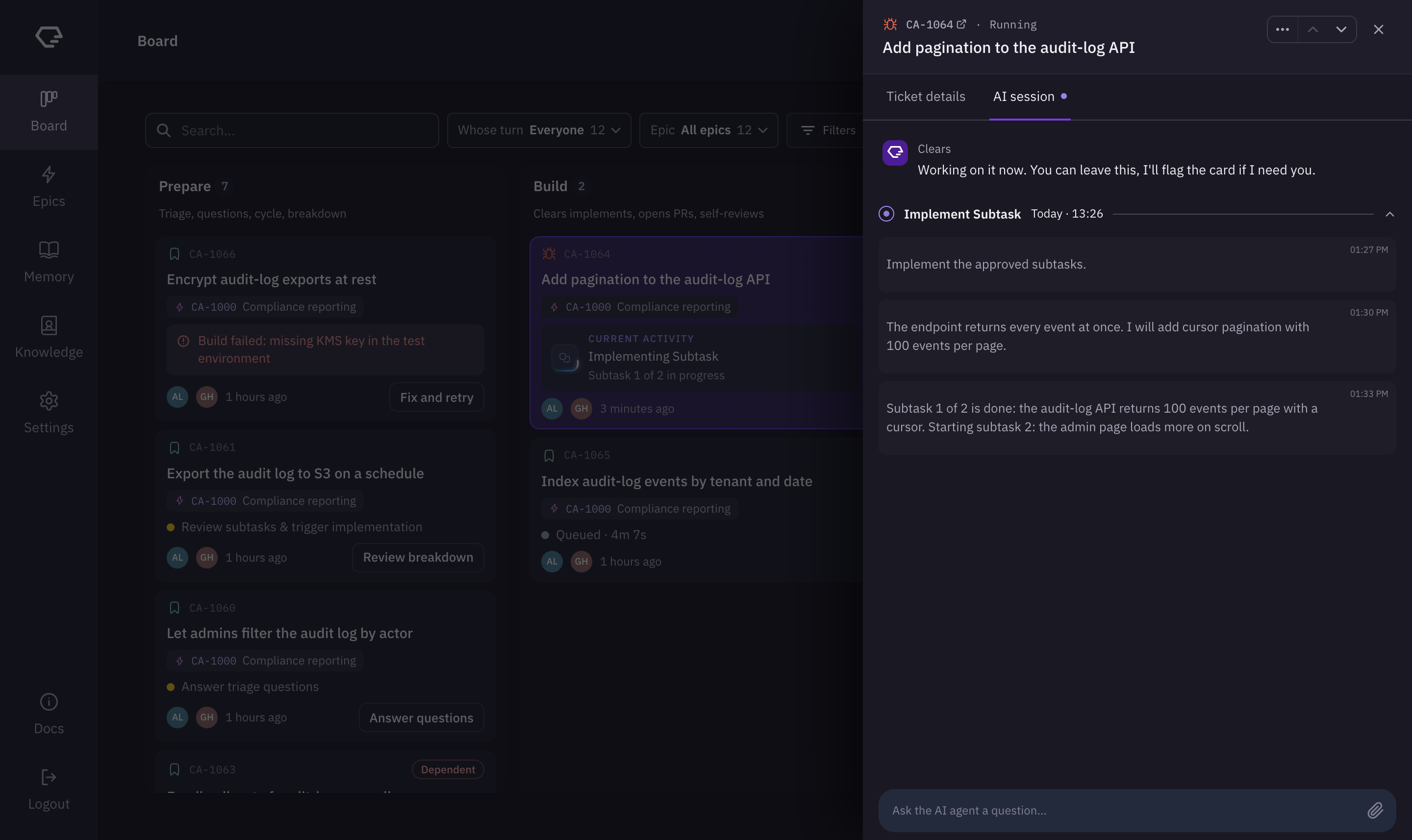
- Live stream - a short note from Clears about where the ticket is, then each run on the ticket and its subtasks, with what Clears is doing as it does it.
- Run history - earlier runs stay in the list. Expand a run to read it.
- Prompt field - type in Ask the AI agent a question... to guide Clears or ask about its work. Press Enter to send, and Shift+Enter for a new line.
- Attach files - attach files to your message with the attach button, by dragging them onto the field, or by pasting an image.
While Clears is working on the ticket, a dot on the AI session tab name shows the live run.
Slack and Microsoft Teams
If Slack or Microsoft Teams is connected, Clears' questions also arrive as direct messages, so you can answer them there.